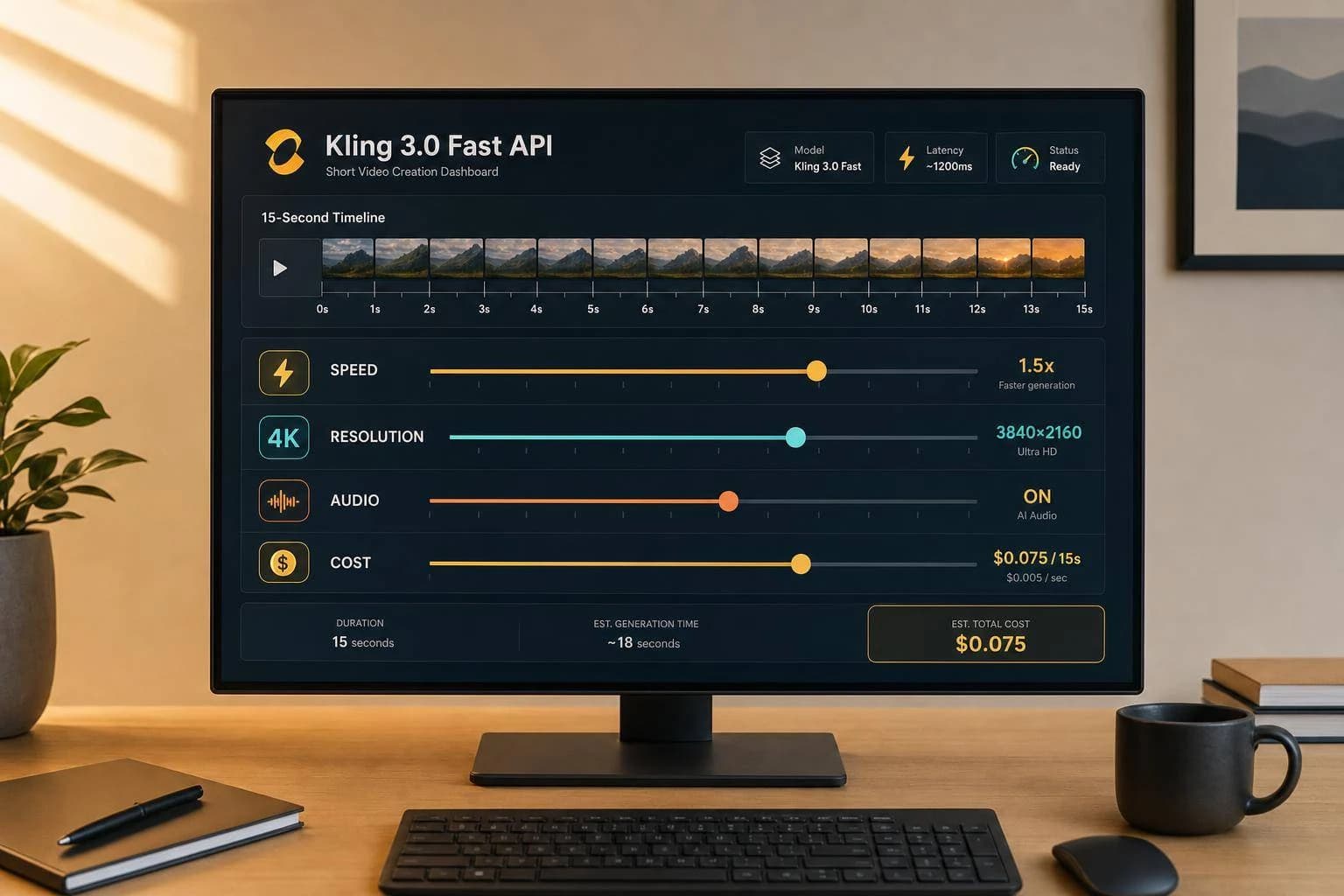
Kling 3.0 Fast API: Pricing, Features & Access
Kling 3.0 Fast API guide: per-second pricing for 720p, 1080p and 4K, native audio costs, clip limits and how to access Kling V3 and V3 Omni on APIMart.
If you want the short answer: Kling 3.0 Fast API is built for short AI videos, and your cost mostly depends on clip length, resolution, and whether you add audio. In the article, I’d boil it down like this: 720p starts at $0.0672 per second, 1080p starts at $0.0896 per second, and 4K jumps to about $0.42856 per second. Most jobs finish in about 30 to 120 seconds, and clips top out at 15 seconds.
Here’s what matters most if you’re sizing it up fast:
- Models:
kling-v3for cinematic output,kling-v3-omnifor text + image workflows - Modes: text-to-video, image-to-video, and start/end frame video
- Clip length: 3 to 15 seconds
- Resolution: 720p, 1080p, and 4K
- Audio: available, but it adds both time and cost
- Concurrency: article cites about 5 parallel jobs per key in one section, while official tier examples list 3 on Trial and 10 on Standard
- Turnaround: often 45 to 90 seconds for short clips, with higher times during busy periods
- Usage scale: Kling had generated more than 600 million videos by April 2026
If I were choosing a setup, I’d keep it simple: use 720p without audio for test runs, move to 1080p with audio for final social clips, and only use 4K when the budget supports it. The article also makes one thing clear: “Fast” means priority processing and shorter queues, not instant video.
Kling 3.0 for Beginners: Step-by-Step Tutorial
Quick Comparison
| Option | Best For | Starting Cost | Max Length | Notes |
|---|---|---|---|---|
| Kling V3 | Cinematic clips | $0.0672/sec | 15s | Better fit when visual quality is the main goal |
| Kling V3 Omni | Text + image workflows | $0.0672/sec | 15s | Better fit for multi-input jobs and audio-led use cases |
| 720p Silent | Testing and drafts | $0.67 / 10s | 15s | Lowest entry cost in the article |
| 1080p Silent | Social and web video | $0.90 / 10s | 15s | Common middle ground |
| 1080p With Audio | Ads and product clips | $1.12 / 10s | 15s | Audio adds about 50% more credit use |
| 4K | High-end output | $4.29 / 10s | 15s | Much higher spend per clip |
Bottom line: if you need short AI video through an API, this article shows that Kling 3.0 Fast is mostly a tradeoff between speed, clip quality, and cost per second. The rest of the piece helps you match the right model, mode, and budget before you integrate.
Kling 3.0 Fast API: Features and Limits
Supported Video Generation Modes
Kling 3.0's Fast tier stands out because it gives you a few ways to make short, ready-to-use clips without slowing everything down. It supports three API modes: Text-to-Video, Image-to-Video, and Start & End Frames-to-Video [3]. Text-to-Video makes a clip from a prompt. Image-to-Video brings a still image to life. For similar high-consistency results, you can also explore MiniMax Hailuo 2.3 for professional-grade video generation. Start & End Frames-to-Video creates motion between two images, which is handy when you want tighter control over a transition.
It also comes with Smart Storyboard, which can turn a single prompt into shot transitions, framing, and camera angles [3][6]. If you want more say over the output, Custom Multi-Shot lets you set up to 6 shots in one request, with a separate prompt and duration for each shot [1][5].
Those options shape how much control you get over the final clip.
Output Quality, Resolution, and Audio
The main tradeoffs here are pretty simple: duration, resolution, and audio. Clips can run from 3 to 15 seconds per generation [1][3]. Resolution options include 720p, 1080p, and 4K. Supported aspect ratios are 16:9, 9:16, 1:1, 4:3, and 3:4 [1][6].
Native audio with synced soundscapes is built in and can be turned on with a boolean parameter like audio: true [1][7]. That includes lip-sync, soundscapes, and multilingual output in Chinese, English, Japanese, Korean, and Spanish [3][6]. There is a catch, though: audio adds more processing time. A 10-second clip with audio usually takes 60–90 seconds to finish [8].
Control Options and Known Limits
You can use cfg_scale from 0 to 1, with 0.5 as the default, to balance prompt adherence with looser generation [7]. In plain English, this helps you decide how closely the model should follow your prompt. You can also use cinematography terms like "dolly push-in" or "lateral tracking" to guide motion more clearly [5].
For subject consistency, the API supports Element Binding for up to 3 subjects in one generation [1]. Adding 2 to 4 reference images per subject can help cut down on visual drift during camera movement [5]. The face_consistency: true parameter adds extra support when faces get partly blocked or move through occlusions [5].
Here are the hard limits to keep in mind before you build:
| Limit | Value |
|---|---|
| Max clip duration | 15 seconds [1][3] |
| Max shots per generation | 6 [1][5] |
| Max subjects (Element Binding) | 3 [1] |
| Reference images per subject | Up to 4 [5] |
| Concurrent jobs per API key | About 5 parallel jobs [5] |
These caps help you figure out if Fast is a fit for quick-turn clips or for work that needs tighter shot control.
Content moderation blocks NSFW content, violence, and sensitive political figures at the API level [5].
These limits also affect both cost and turnaround time.
Kling 3.0 API Pricing: Per-Second Costs, Fast Tier Tradeoffs, and APIMart Rates
How Kling 3.0 API Pricing Works
Once the feature set is clear, pricing mostly comes down to video length, resolution, and audio, much like the cost control strategies used for large language models.
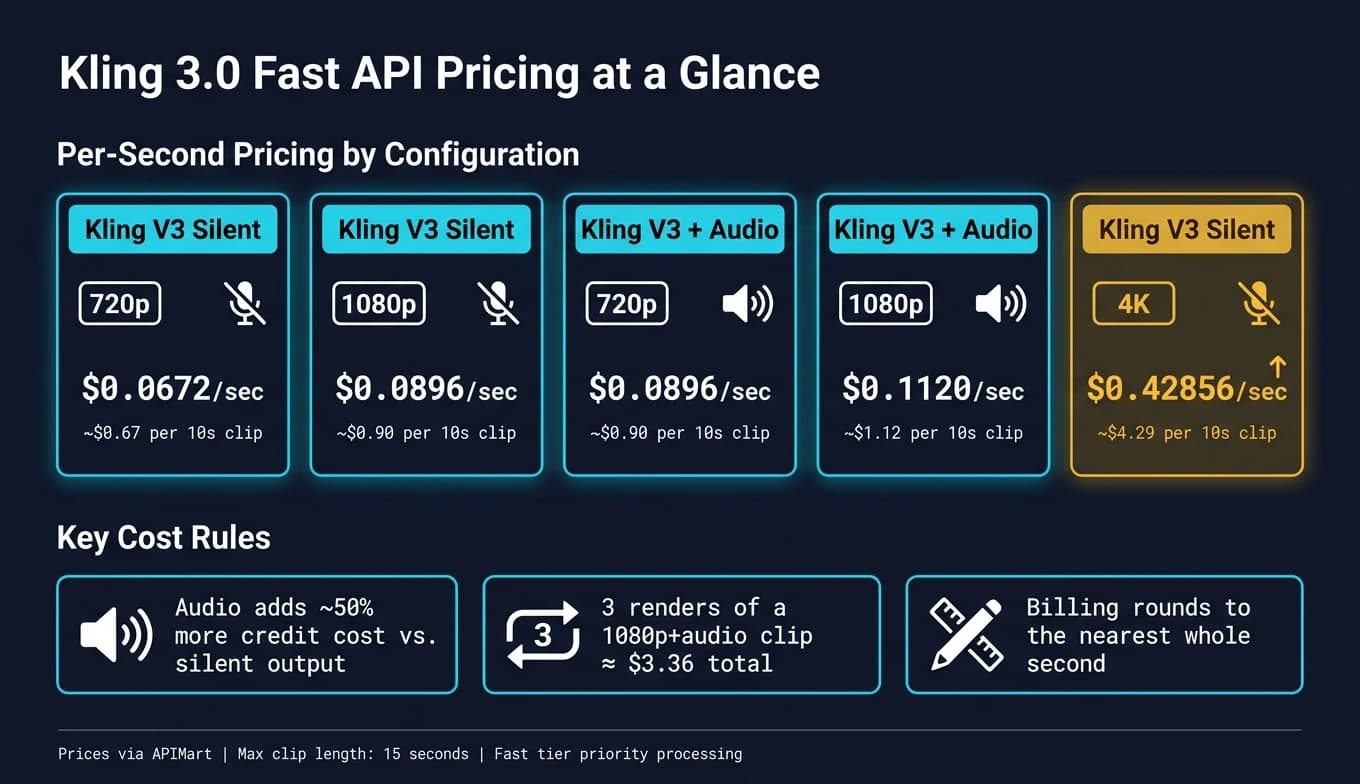
Kling 3.0 pricing is mainly based on the final video duration. Billing rounds to the nearest whole second, and some Fast task modes use fixed credit rates for 4-, 6-, and 8-second jobs [10]. So if you're making lots of clips, keeping them short can cut spend in a very direct way.
The biggest cost swings usually come from two settings: resolution and audio. Turning on native audio increases credit use by about 50% compared with silent output [9]. In Omni mode, using a reference video input also pushes up the 1080p rate, moving from 8 credits per second to 16 credits per second [9]. Multi-Shot generation does not add a separate flat fee. It's billed at the same per-second rate as the resolution and audio setup you pick [9].
APIMart Pricing for Kling V3 and Kling V3 Omni
On APIMart, Kling V3 and Kling V3 Omni start at $0.0672 per second for 720p output. Move up to 1080p and the rate becomes $0.0896 per second. Turn on native audio at 720p, and the rate also lands at $0.0896 per second. For 4K Ultra HD, pricing jumps to $0.42856 per second.
Here’s what that means for a 10-second clip:
| Configuration | Resolution | Estimated Cost (10s Clip) |
|---|---|---|
| Kling V3 - Silent | 720p | $0.67 |
| Kling V3 - Silent | 1080p | $0.90 |
| Kling V3 - 720p with Audio | 720p | $0.90 |
| Kling V3 - With Audio | 1080p | $1.12 |
| Kling V3 - Silent | 4K | $4.29 |
A 15-second clip at 720p silent costs about $1.01, while that same 15-second clip at 1080p with audio comes in closer to $1.68 [9].
This is where iteration starts to matter. One render may look cheap on paper, but repeat the same shot a few times and the total climbs fast. For example, a finished 10-second 1080p clip with audio can cost about $3.36 after three generations.
Speed vs. Cost vs. Quality: When Fast Access Is Worth It
After you know the base rates, the next call is tier selection.
Fast mode is a good fit when you want short clips, quick turnaround, and pricing that's easier to predict. Some Kling 3.0 Fast task modes use fixed credit rates per task instead of straight per-second billing, especially for 4-, 6-, or 8-second clips [10]. Pro mode works differently. It uses a per-second ladder, which can be the cheaper pick for very exact 3-second outputs or longer 15-second scenes [10].
| Resolution | Audio | Approx. Price/Sec (APIMart) | Max Duration | Typical Use Case |
|---|---|---|---|---|
| 720p | Off | $0.0672 | 15s | Rapid iteration, motion testing |
| 1080p | Off | $0.0896 | 15s | Social media ads, YouTube content |
| 1080p | On | $0.1120 | 15s | Branded content, product demos |
| 4K | On | $0.42856 | 15s | Cinematic production, broadcast |
| 1080p (Omni Reference) | Off | $0.1792 | 15s | Character/style consistency |
For teams that need the same character or visual style across several clips, Omni reference mode can make sense even at the higher rate. But it's not the right default for every job.
A simple working approach looks like this:
- Use 720p silent for drafts and test runs
- Use 1080p with audio for final delivery
- Use 4K only when the project budget and output needs call for it
How to Access Kling 3.0 Fast API
Official Access Methods
Once you understand the pricing, the next step is getting access.
Head to Kling AI’s developer portal at klingai.com. The API is separate from the consumer web app, so you’ll need to register there, buy credits, and pick a tier: Trial, Standard, or Enterprise [11]. The Trial tier allows up to 3 concurrent jobs, while Standard bumps that up to 10 [11].
There’s also one limit you should know before you start building: prompts that break policy return a 422 CONTENT_POLICY_VIOLATION response and don’t use credits [11][12]. That’s good for your budget, but it still means a failed request. For that reason, client-side prompt checks can help cut down on wasted API calls [14].
Accessing Kling V3 Through APIMart
If your team wants to plug Kling into a production setup, APIMart offers the same async request pattern. It gives you access to Kling V3 and Kling V3 Omni through one unified, OpenAI-compatible API, with a 99.9% uptime SLA [2].
For each request, choose the model with kling-v3 or kling-v3-omni, then set mode to std, pro, or 4k [4].
One detail that matters for commercial use: videos made through APIMart come with full commercial IP ownership rights [2][13].
The Standard API Integration Pattern
Both access options follow the same job-based flow. You authenticate with Authorization: Bearer <token>, send a POST request to start generation, save the task_id, poll every 10 seconds, and download the final file from its URL before that link expires [4][11][14].
In most cases, a 5-second clip finishes in about 45 to 90 seconds. During busy periods, that can stretch to around 150 seconds, and adding native audio usually adds another 15 to 25 seconds [11][14]. The download URL expires after 24 hours, so save the file right away instead of assuming it’ll still be there later [11].
A few implementation habits make life easier:
- Use exponential backoff for 429 rate-limit responses
- Retry 503 resource-unavailable errors
- Keep your API key in an environment variable like
KLING_API_KEYinstead of hardcoding it [11][14]
Choosing the Right Setup and Final Takeaways
Best-Fit Use Cases by Team Type
With pricing and access out of the way, the last step is simple: match the model to the work.
Think in terms of workflow first - ads, product clips, automation, or cinematic scenes.
Marketers running social ad campaigns are a strong match for Kling V3 Omni at 1080p. Native audio and lip-sync make it a solid pick for short-form ads. E-commerce teams making product lifestyle content can use Omni’s image-to-video flow to turn a product photo into a polished clip. For even higher consistency in motion, teams might also consider WAN 2.6 API for professional-grade video generation. Developers building video features at scale should lean toward Kling V3 at 720p, where short clips stay fast and costs stay easier to predict. Film and storyboard teams are the best match for Kling V3 in 4K, where the longer duration range and cinematic lighting control can justify the higher cost.
Kling V3 vs. Kling V3 Omni on APIMart: How to Choose
Pick Kling V3 when cinematic quality and longer duration matter most. Pick Kling V3 Omni when your workflow needs more than one input type or native audio.
Use the table below as a starting point for model selection.
| Project Type | Recommended Model | Resolution | Duration |
|---|---|---|---|
| Social Media Ad Hook | Kling V3 Omni | 1080p | 5–10 seconds |
| Cinematic Short Film | Kling V3 | 4K | 10–15 seconds |
| E-commerce Product Clip | Kling V3 Omni | 4K | 5–10 seconds |
| Educational Explainer | Kling V3 Omni | 720p | 5–15 seconds |
| Rapid Prototyping | Kling V3 | 720p | 3–5 seconds |
If you need character consistency across shots, multi-shot sequencing, or native audio, Omni is the better fit. If your main goal is cinematic visuals and longer duration, V3 makes more sense.
Conclusion: Key Points to Remember
If you want a simple rule of thumb, choose by workflow first and cost second.
Pricing is per second, so base your math on the clip’s actual length and match resolution and duration to the project. Fast API access cuts generation latency, which helps most when turnaround matters more than top-end polish. APIMart’s unified API also lets you use both models through one integration.
FAQs
How much should I budget for test renders?
Budget test renders with a per-second pricing model. What you pay changes based on the model, output resolution, and add-ons like native audio or reference clips.
As a rough guide, standard generations may cost about $0.075 per second. More advanced options, like reference-to-video or video editing, can start around $0.1125 per second.
To keep costs under control, start with the shortest clips possible - usually 3 seconds - and use a lower resolution like 720p for early tests. It also helps to leave some extra room in your budget for failed jobs and reruns.
When should I choose Kling V3 vs. Kling V3 Omni?
Choose Kling V3 when you need prompt-led, low-cost idea testing, fast concept work, experimental shorts, or scenes with complex characters that don’t need to stay tightly linked from shot to shot. It’s a good fit when budget is the main factor and you want to move fast without spending much.
Choose Kling V3 Omni for workflows that depend on consistency, like ads or serialized content. It makes more sense when you need synced audio, AI-guided multi-shot sequences, or tight control using image and video references.
What happens if my video request fails or gets blocked?
If a video request fails or gets blocked, the API will usually return an error code that points you in the right direction. For example, 400 often means your request includes invalid parameters, while 429 usually means you’ve hit a rate limit.
In production, plan for failures while polling tasks. If a task ID comes back as failed, log and capture the error message so you can see what went wrong. It also helps to check your input URLs, such as source image links, before sending the request. If those links are private or require authentication, the job can fail.
One more thing: on some platforms, failed generations can still consume credits.
Choose the model you want in the model marketplace
Try chat, image and video models in the APIMart model marketplace, and experience model capabilities quickly with one unified API.