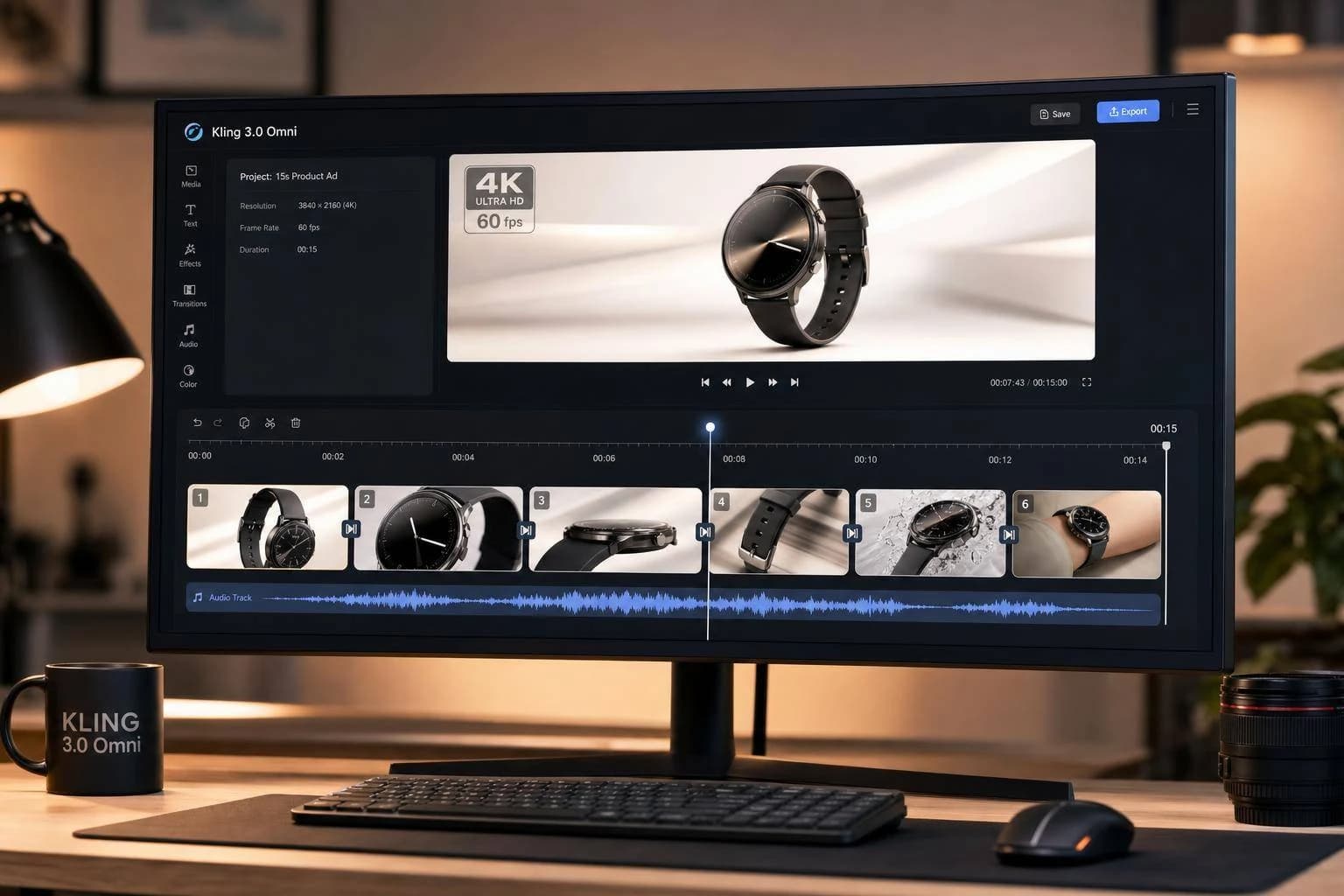
Kling 3.0 Omni: 4K Video, Editing & 15s Clips
Kling 3.0 Omni explained: native 4K at 60fps, 15-second clips, built-in audio, six camera cuts and Omni Edit, plus pricing and how to test it on APIMart.
If you want the short answer: Kling 3.0 Omni adds 15-second clips, native 4K at 60 fps, built-in audio, and up to 6 camera cuts in one generation. That means I can make a short ad, demo, or promo in one pass instead of stitching lots of small clips together. For those seeking alternatives with high consistency, the WAN 2.6 API offers professional-grade video generation.
Here’s the core of it in plain English:
- Clip length went from 10 seconds to 15 seconds
- 4K output is native, not just upscaled
- Audio and video are generated together
- AI Director supports up to 6 cuts in one prompt
- Character tools help keep the same person steady across shots
- 4K mode has a catch: no reference video or voice input in that mode
- Cost starts at about $0.40 for 6 seconds at 720p and about $6.30 for 15 seconds in 4K
- Best use case: short ads, product demos, branded clips, and multilingual spots
- Weak fit: anything over 15 seconds or jobs that need frame-level manual editing
I Tested Native 4K in Kling AI 3.0 for Cinematic AI Commercial Production
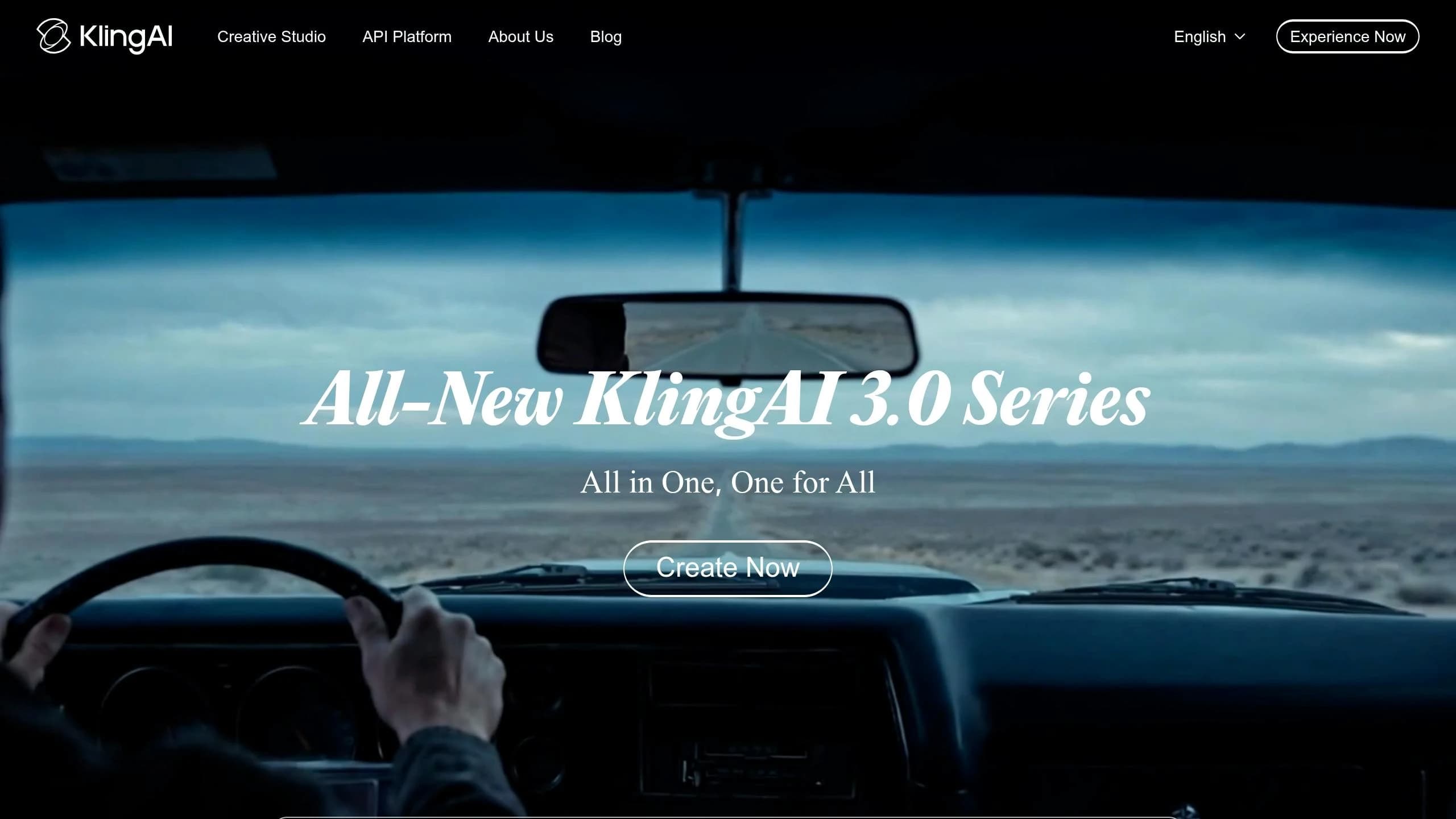
Quick Comparison
| Item | Kling 2.6 | Kling 3.0 Omni |
|---|---|---|
| Max resolution | 1080p upscaled | Native 4K (3,840 × 2,160) |
| Frame rate | 30 fps | 60 fps |
| Max clip length | 10 seconds | 15 seconds |
| Shot structure | Single shot | Up to 6 cuts |
| Audio | Separate step | Built in |
| Character control | More limited | Reference-based identity tools |
What I take from this update is simple: Kling 3.0 Omni is built for polished short-form video, but you still need to work around the 15-second cap, retry rate, and 4K input limits. The rest of this article breaks down where it fits, where it falls short, and how I’d test it through APIMart. You can also explore the Kling V3 API for cinematic-quality generation.
What the Kling 3.0 Omni Update Adds
Kling 3.0 Omni aims at the continuity and quality problems users ran into before. It does that by extending clip length, tightening multimodal alignment, and improving export quality.
Unified multimodal generation for clips up to 15 seconds
The biggest shift in Kling 3.0 Omni is simple: text, image, video, and audio now run through one native generation pass. That helps keep visuals, dialogue, effects, and ambience in sync instead of feeling pieced together [1][7].
The move from 10 seconds to 15 seconds matters too. That extra time is enough to build a full hook, body, and CTA inside one clip, which lines up well with short-form ad formats [4][3]. In plain terms, teams can do more in a single output and spend less time stitching short clips together.
AI Director adds up to six camera cuts in one prompt. That includes shot-reverse-shot, cross-cutting, and tracking shots, while keeping lighting and subject appearance steady across transitions [1][3]. For ads and promos, that means you can build a full narrative arc in one go instead of splicing separate clips.
4K-capable workflows, visual detail, and export quality
Kling 3.0 generates native 4K at 60 fps, not an upscale from a lower-resolution base [3][4]. That makes a clear difference for larger screens and product work where small details matter.
For product-focused use, the gains are pretty practical. Logos, labels, and small on-screen text stay easier to read, and fine textures hold up better during motion. The upgraded physics engine also improves fabric movement and effects like dust or wind [2][4].
| Feature | Kling 2.6 | Kling 3.0 Omni |
|---|---|---|
| Max Resolution | 1080p (upscaled) | Native 4K (3840×2160) |
| Frame Rate | 30 FPS | 60 FPS |
| Max Duration | 10 seconds | 15 seconds |
| Shot Structure | Single continuous shot | Up to 6 camera cuts |
| Audio | Separate pipeline | Native synchronized audio |
Resolution is only one part of the update. Kling also adds tools aimed at consistency and faster edits.
Native audio, character consistency tools, and Omni Edit
Character Identity 3.0, called Elements, lets you upload a 3–8 second reference video to preserve a character’s face, clothing, posture, and voice across shots [1][9]. That helps keep the subject consistent even when the setting or camera angle changes.
Voice binding works with that system. The model carries over vocal tone from a reference clip and applies it across generations, with native audio support in English, Chinese, Japanese, Korean, and Spanish. It also supports regional accents like American, British, and Indian English [1][3][4].
Omni Edit handles targeted fixes without forcing a full regeneration. If a background element is off or a product label needs to change, you can fix that area directly [1]. It’s a more direct way to handle small errors without rerunning the whole clip, especially when labels, backgrounds, or minor product details are wrong.
These updates improve speed and consistency, but they also bring trade-offs in control and output quality, which the next section breaks down.
Capabilities, Limits, and Quality Trade-Offs
Inputs, outputs, and clip duration limits
The update gives teams more ways to work, but each mode comes with limits that matter in day-to-day use.
Kling 3.0 Omni accepts four input types: text prompts, image references (start frame, end frame, or 2- to 4-image sets), short video clips (3 to 8 seconds) for character identity, and voice samples for Signature Voice binding [1][10]. Output length runs from 3 to 15 seconds, and 15 seconds is the hard cap for a single generation pass. If you need a longer story, you'll still have to stitch clips together by hand.
Native audio works in five languages with regional accents, and the model can handle up to three speakers in one scene [1][3].
Editing constraints and where quality can break down
This is where things can get messy. Complex physical contact is still the most common failure point. In short ads or micro-clips, scenes with hugging or fighting can lead to blended limbs or faces [3].
Text can also fall apart, especially on signs and product labels during fast motion. And when a prompt tries to do too much at once, the model may ignore part of it. In practice, around 30% to 40% of generations may need a retry because of artifacts or missed prompt details [3].
One limit matters more than it may seem at first: 4K mode does not support reference video or voice inputs [5]. So if your project depends on Signature Voice binding or video references, you'll need to stay in 720p or 1080p mode.
Standard vs. higher-quality workflows for short projects
For most short projects, the safest workflow is to preview first. Generate in 720p or 1080p using "No Native Audio" mode so you can check pacing, motion, and shot structure before spending more credits [3][10].
Then, if the clip looks right, move to a 4K render for final delivery. That matters because 4K multi-shot renders cost more credits than standard renders [3][4].
A simple way to think about it:
- Standard mode: best when you need voice control and video references
- 4K mode: best when image quality matters most for product demos, ads, and big-screen delivery
Those trade-offs usually decide the workflow. If control features matter most, stay in standard mode. If the final look matters more, move to 4K for the last render.
How to Evaluate Kling 3.0 Omni Through APIMart
How APIMart exposes Kling 3.0 Omni in a production workflow
If you're testing Kling 3.0 Omni in a live workflow, APIMart gives you a pretty direct way to do it. Teams can access Kling 3.0 Omni through one unified API that accepts text, image, audio, and video inputs in the same place. The API uses an OpenAI-compatible request format.
The setup is asynchronous and job queue-based. You submit a generation request, poll the API for status updates, and then fetch the finished video file when the job is done [8]. Kling 3.0 supports up to 3 scene renders at once [8]. For final output, use mode=4k.
Budgeting 6-second, 10-second, and 15-second clip runs
When you plan costs, clip length is the main driver. APIMart lists this model at $0.0672 per second at 720p. Here’s what that looks like at the base 720p level:
| Clip Duration | 720p Cost | Notes |
|---|---|---|
| 6 seconds | ~$0.40 | Good for social hooks and opening shots |
| 10 seconds | ~$0.67 | Covers most product demo structures |
| 15 seconds | ~$1.01 | Fits a complete short ad or micro-spot |
Those numbers are just the base render cost. In practice, it makes sense to budget 2x to 3x that amount for retries on more complex scenes [3][11]. So if you want ten finished 15-second clips at 720p, the total can end up around $20 to $30 once retries are part of the mix.
4K is a different story. A similar 4K API benchmark comes in at about $0.42 per second [8], which puts one 15-second 4K final render at about $6.30. The practical move is simple: draft in 720p, review the results, and switch to 4K only for the clips that make the cut [3][5]. For projects requiring different motion styles, you can also compare MiniMax Hailuo 2.3 for high-consistency video generation.
When Kling 3.0 Omni fits your project and when it does not
Once cost is clear, the next step is figuring out whether the model matches the job. Kling 3.0 Omni’s AI Director and multi-shot generation can combine a hook, product detail, and CTA in one pass, with up to six camera cuts inside a single 15-second generation [1][3].
| Scenario | Fit | Reason |
|---|---|---|
| Short social ads (Reels, TikTok, Shorts) | Strong | Multi-shot generation covers hook, body, and CTA in one API call [1][3][4]. |
| Product demos | Strong | 4K delivery can make sense when visual detail is what sells the product [4][5]. |
| Branded character clips | Strong | Elements 3.0 helps cut down on retakes by keeping appearance and voice steady across shots [1][4][9]. |
| Global multilingual campaigns | Strong | Native audio in five languages removes a separate dubbing step from the workflow [1][4]. |
| Long-form narratives (>15 seconds) | Weak | Anything over 15 seconds needs manual editing between clips [11]. |
| Projects relying on traditional frame-by-frame editing | Weak | The model works better for generative clip creation than frame-by-frame manual control. |
Use Kling 3.0 Omni when you want a polished short clip, steady character continuity, and less manual editing.
Conclusion: What Teams Should Take Away From the Update
Key takeaways for creators, marketers, and developers
After looking at the capabilities, limits, and costs above, the takeaway is pretty simple: Kling 3.0 Omni is a big step forward for short-form production. It works best for polished clips where visual quality, character consistency, and built-in audio all need to work together in one project. And the 15-second cap is enough for a complete short ad or micro-clip.[1][2]
The headline upgrade is 4K. Native 3840×2160 at 60fps makes Kling 3.0 Omni a fit for connected TV, digital out-of-home placements, broadcast, and high-end e-commerce ads.[4][6] A smart workflow is to draft in 720p, then finish in 4K for final delivery.
Use Kling 3.0 Omni when the clip fits inside 15 seconds, needs unified audio and character control, and has a clear reason for 4K output. For teams looking at APIMart access, this is a strong pick for a short, structured test run.
FAQs
When should I use 4K mode instead of 720p or 1080p?
Use 4K when image quality matters most for pro placements like CTV ads, DOOH screens, large retail signage, and broadcast TV.
For most social posts and web content, 720p or 1080p is usually enough. 4K also makes sense when AI-made clips need to fit into pro editing timelines and keep detail intact without upscaling.
How do I make clips longer than 15 seconds with Kling 3.0 Omni?
You can’t make a single clip longer than 15 seconds in Kling 3.0 Omni. That’s the hard cap for each generation.
If you need a longer video, the usual move is simple: generate a few short clips, then stitch them together in your editor.
There’s also Multi-Shot mode, which lets you fit up to six camera cuts or scenes into one 15-second clip. That helps you pack more into a short runtime, but it still doesn’t go past the 15-second limit for a single generation.
What kinds of scenes are most likely to need retries?
Scenes that most often need a second pass include:
- high-speed motion, which can lead to frame stutter
- complex hand details, which may come out soft
- longer narratives where recurring elements drift from one storyboard shot to the next
As a rule of thumb, fast-moving, detail-heavy scenes or shots that need production-ready precision are the ones most likely to need iterative refinement.
Choose the model you want in the model marketplace
Try chat, image and video models in the APIMart model marketplace, and experience model capabilities quickly with one unified API.