Kling 3.0 Omni: 4K, Longer Clips, Less Drift
Kling 3.0 Omni adds native 4K output, 15-second clips, and steadier character, voice, and scene consistency. See what changed and how to call it on APIMart.
Kling 3.0 Omni adds three main changes: native 4K video, clips up to 15 seconds, and steadier character, voice, and scene continuity. If you make AI video for ads, product demos, training, or media, those three updates affect image quality, edit length, and how much cleanup you do after generation.
Here’s the short version:
- Native 4K output means video is generated at 3,840 × 2,160 from the start, not upscaled later
- Clip length moves from 10 seconds to 15 seconds, which gives you more room for one scene to play out
- Character Identity 3.0 and Elements 3.0 help keep faces, voices, and scene details more steady across shots
- 4K costs more and takes longer: about $0.42856/sec for 4K vs. $0.0896/sec for 1080p
- Drafts still make sense at 720p or 1080p, then switch to 4K for final output
- APIMart setup matters: use
kling-v3-omni, turn onmulti_shotwhen needed, and download files within 24 hours
In other words: Kling 3.0 Omni is less about new buttons and more about fewer re-runs. You get sharper final video, longer single generations, and more stable subjects across scenes.
I Tested Native 4K in Kling 3.0 for Cinematic Commercial Work
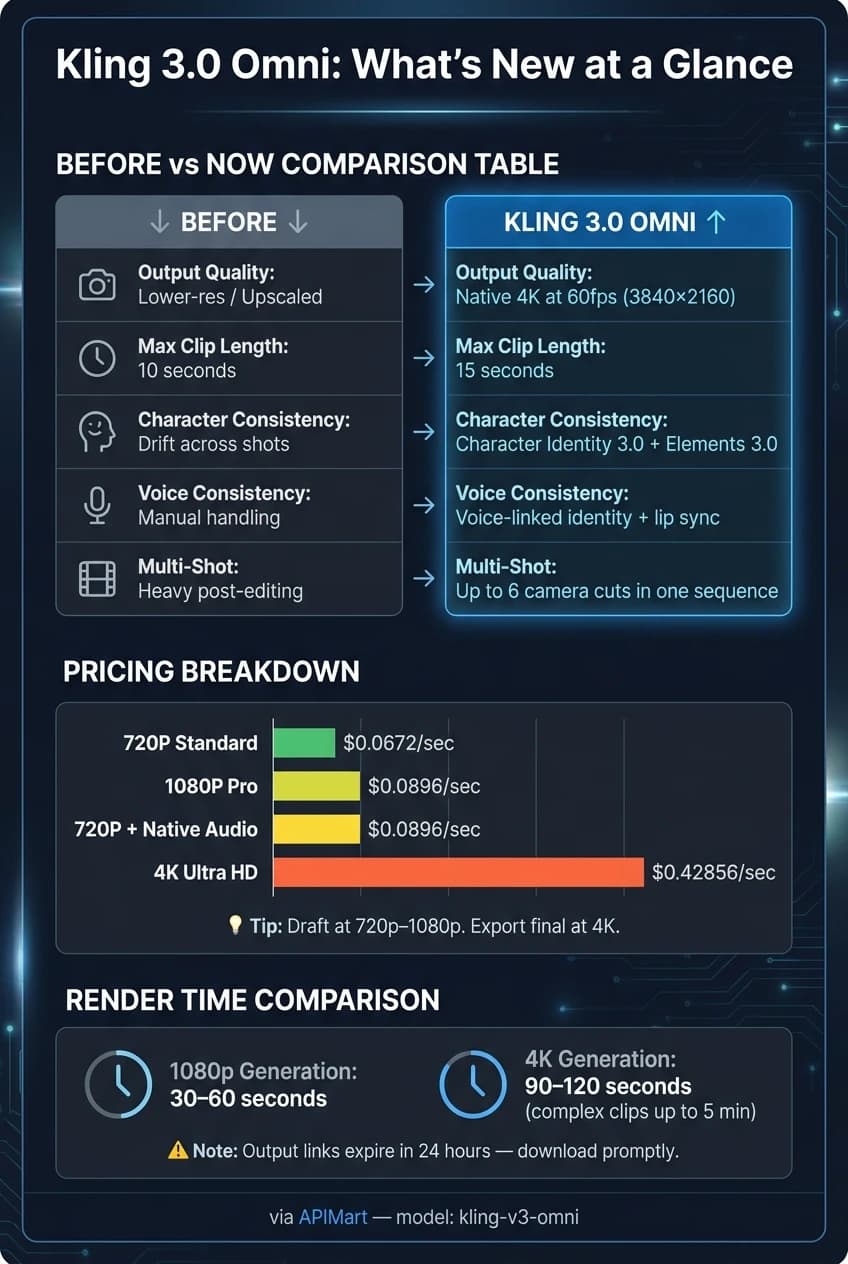
Quick Comparison
| Area | Before | Now in Kling 3.0 Omni | What it changes |
|---|---|---|---|
| Output quality | Lower-res generation, often upscaled later | Native 4K at 60 fps | Cleaner fine detail, text, edges, and product shots |
| Max clip length | 10 seconds | 15 seconds | Fewer stitched clips and more room for one scene |
| Character consistency | More drift across shots | Character Identity 3.0 + Elements 3.0 | Faces, styling, and scene details stay more steady |
| Voice consistency | More manual handling | Voice-linked identity from audio reference | Better lip sync and voice match across scenes |
| Multi-shot workflow | More editing after generation | AI Director + Custom Multi-Shot | Up to 6 camera cuts in one sequence |
| Cost | Lower at draft resolutions | Higher for 4K final output | Better to draft low, export high |
If I had to sum it up in one line: Kling 3.0 Omni makes AI video output sharper, longer, and more stable - but you still need to watch cost, render time, and API setup.
Native 4K Output: Sharper Detail and Cleaner Delivery
Native 4K keeps detail at the moment the video is made, instead of trying to add it later with upscaling. Kling 3.0 Omni outputs video at 3,840×2,160 pixels during generation, so fine textures, edges, and reflections appear at full pixel density. In plain English: the image starts sharper, and that helps keep texture and lighting intact [2][4].
How Native 4K Changes the Render Pipeline
Older workflows often meant generating at 1080p first, then running the clip through a separate upscaler before delivery. That extra handoff added time and could create artifacts, especially around text and thin edges. Kling 3.0 Omni cuts out that extra pass by producing final output in a single pass [2][6].
There is a trade-off, though. 4K takes more time and costs more. Complex clips can take 90–120 seconds to generate, compared with 30–60 seconds for 1080p. APIMart pricing lists 4K Ultra HD at $0.42856 per second versus $0.0896 per second for 1080p [6]. A simple way to think about it: use 720p or 1080p for drafts and review rounds, then switch to 4K for the final export.
Where 4K Output Makes the Most Difference
The biggest gains tend to show up in marketing, e-commerce, and content meant for large screens or text-heavy viewing. Product close-ups hold enough detail to show material finishes and brand logos with more clarity. Paid ad assets also give teams more room to crop or reframe without losing key visual detail. For educational videos or software demos shown on large monitors, on-screen text like formulas, code snippets, and UI labels stays more readable through the clip [2][6].
Native 4K Generation vs. Post-Upscaled Output
Native generation lowers the risk of artifacts that external upscalers can introduce, especially around text, fine edges, and micro-textures. Post-upscaled output is still fine for social drafts and fast prototyping. But when final delivery quality is the priority, native 4K is the better pick [2][6].
Small fonts can still soften during fast motion, so include the exact text in the prompt whenever that text matters [6][3].
The next upgrade is clip length, where longer 15-second generations reduce stitching between shots.
Longer Generations: More Usable 15-Second Sequences
Kling 3.0 Omni pushes the max clip length from 10 seconds to 15 seconds [1]. That may sound like a small jump, but in practice it changes how a clip feels. You get enough room for a clear start, middle, and finish instead of a scene that cuts off just as it gets going.
Of course, more time also means more chances for things to drift off track. If a subject shifts appearance halfway through, or the setting starts to wobble, the extra seconds can work against you. That’s why the next part matters so much.
How Longer Clips Help Maintain Continuity
The main win is simple: you need fewer stitched clips. One 15-second generation can cover more of a scene on its own, which cuts down on visual jumps between separate shots [7][1].
Kling 3.0’s Elements 3.0 and Character Identity 3.0 are built to keep visual traits steady across the whole sequence. That helps subjects and environments stay locked in and cuts down on identity drift [1][5]. The longer runtime also gives motion more room to play out, so scenes feel less rushed and less squeezed into a tiny window.
Still, longer sequences only pay off when the subject stays steady from shot to shot.
Longer-Edit Workflow Examples
In production terms, this means cleaner setups and less patchwork in post.
A 15-second product reveal can start with a wide establishing shot, move into a close-up, and stay aligned across the full sequence. That means fewer cut points, less manual stitching, and smoother shot flow.
An educational sequence that shows a physical process can now run long enough for the idea to register before the clip ends. That extra breathing room matters when the goal is to explain, not just flash something on screen.
For multi-shot ad formats, Kling 3.0’s built-in AI Director can manage up to six camera cuts inside one 15-second generation, including setups like shot-reverse-shot [1][3].
If you want tighter control, Custom Multi-Shot lets you assign the length of each shot. For example:
- 3-second intro
- 6-second demo
- 6-second close
You can also use time markers in prompts to lock actions to exact moments. A prompt like "At the 8th second, the camera zooms in," pins that move to a specific point in the sequence [7][3].
Short Clip Generation vs. 15-Second Generation
Short clips still make sense for quick actions and simple beats. But 15-second generations are better suited for fuller scenes, more camera changes, and less stitching after the fact.
The trade-off is speed. Complex 15-second 4K sequences can take five minutes or more.
Longer clips also put more pressure on continuity, which leads straight into Kling 3.0 Omni’s consistency upgrades.
Better Consistency Across Scenes: Character, Voice, and Visual Continuity
Kling 3.0 Omni, the successor to kling-v2-6, uses Visual DNA to keep character and voice identity steady from one shot to the next.
Visual Consistency in Repeated Subjects and Settings
At the center of this system is Elements 3.0. It lets you upload up to four reference images: front, side, back, and a detail shot. You can also upload a 3-to-8-second video clip. The model turns those inputs into appearance features that help keep the subject stable during camera moves like 360-degree orbits or dramatic zooms [9]. That same identity lock now applies to voice too.
This matters most for branded campaigns and serialized videos, where the same character needs to look the same across scenes [9].
Voice-Linked and Narrative Consistency
Voice binding brings that same continuity to audio. Upload a 5-to-30-second audio clip, and you can define a character’s voice tone, pitch, and emotion. Voice binding keeps tone, pitch, and emotion aligned, while also generating lip sync and facial expressions across five languages [8][9].
What Better Consistency Reduces in Post-Production
When a character’s look stays locked and audio sync happens on its own, teams spend less time re-generating shots or fixing continuity gaps in an editor [1][4]. In plain English: fewer reshoots, fewer retries, and less manual cleanup.
Production Impact and APIMart Integration
What Changes for Developers and Creative Teams
Kling 3.0 Omni cuts down on rework. Teams can prototype multi-shot sequences in one pass, keep character and audio continuity more steady, similar to the capabilities found in Sora 2, and use Shot Refine to fix only the weak part.
That means if one segment misses the mark, you redo only that segment. No need to rerun the whole sequence. In practice, that saves both credits and time, and the payoff becomes even clearer once you plug it into production workflows.
What to Check Before Integrating Through APIMart
Those workflow wins depend on a few API settings. In APIMart, set model to kling-v3-omni and multi_shot to true if you want automated storyboarding.
A few limits matter here:
- You can use up to 7 image or element references
- Or up to 4 references when a reference video is included
- Output links expire after 24 hours, so downloads need to happen within that window
For production, it makes sense to start with 720p drafts and move to 4K for final delivery. That gives teams room to test ideas without burning through budget too early.
You should also plan for storage and bandwidth. Native 4K (3840×2160) carries four times the pixel data of 1080p [10].
| Resolution / Mode | APIMart Price (per sec) |
|---|---|
720P (std) | $0.0672 |
1080P (pro) | $0.0896 |
| 720P + Native Audio | $0.0896 |
| 4K Ultra HD | $0.42856 |
Conclusion: The Key Upgrades to Remember
Kling 3.0 Omni's three core additions - native 4K output, 15-second generations, and better cross-scene consistency - cut retry cycles, manual fixes, and the need for extra tools across AI video workflows, such as those powered by WAN 2.7.
FAQs
When should I use 4K instead of 1080p?
Use 4K for polished final cuts when visual quality matters most, like commercial ads, pro marketing videos, or any production where brand and character identity need ultra-high detail.
That said, 4K takes more resources. A smart workflow is to render draft versions in 720p first so you can cut costs and fine-tune the story. Then, once the clip is dialed in, generate the final version in high resolution.
How do longer 15-second clips change editing workflows?
Longer clips - up to 15 seconds - let you generate one continuous sequence in a single pass instead of piecing together several short clips.
With AI Director and multi-shot storyboards with up to six camera cuts, the model can handle shot planning, transitions, and pacing on its own. That means less manual cutting on your side. It’s especially helpful for dialogue and action scenes that need a clear beginning, middle, and resolution.
What references improve character and voice consistency most?
For the strongest character and voice consistency in Kling 3.0 Omni, use the Elements 3.0 system with a 3- to 8-second video clip of the character.
That one clip helps lock in facial dynamics, body movement, vocal tone, and visual appearance. If you're working with static assets, you can also use up to four reference images plus a 5- to 30-second audio sample for similar stability.
Choose the model you want in the model marketplace
Try chat, image and video models in the APIMart model marketplace, and experience model capabilities quickly with one unified API.