AI Color Correction for Marketing Videos
Learn how AI color correction improves marketing videos with faster grading, brand-safe colors, better skin tones, batch workflows, quality checks, and APIs.
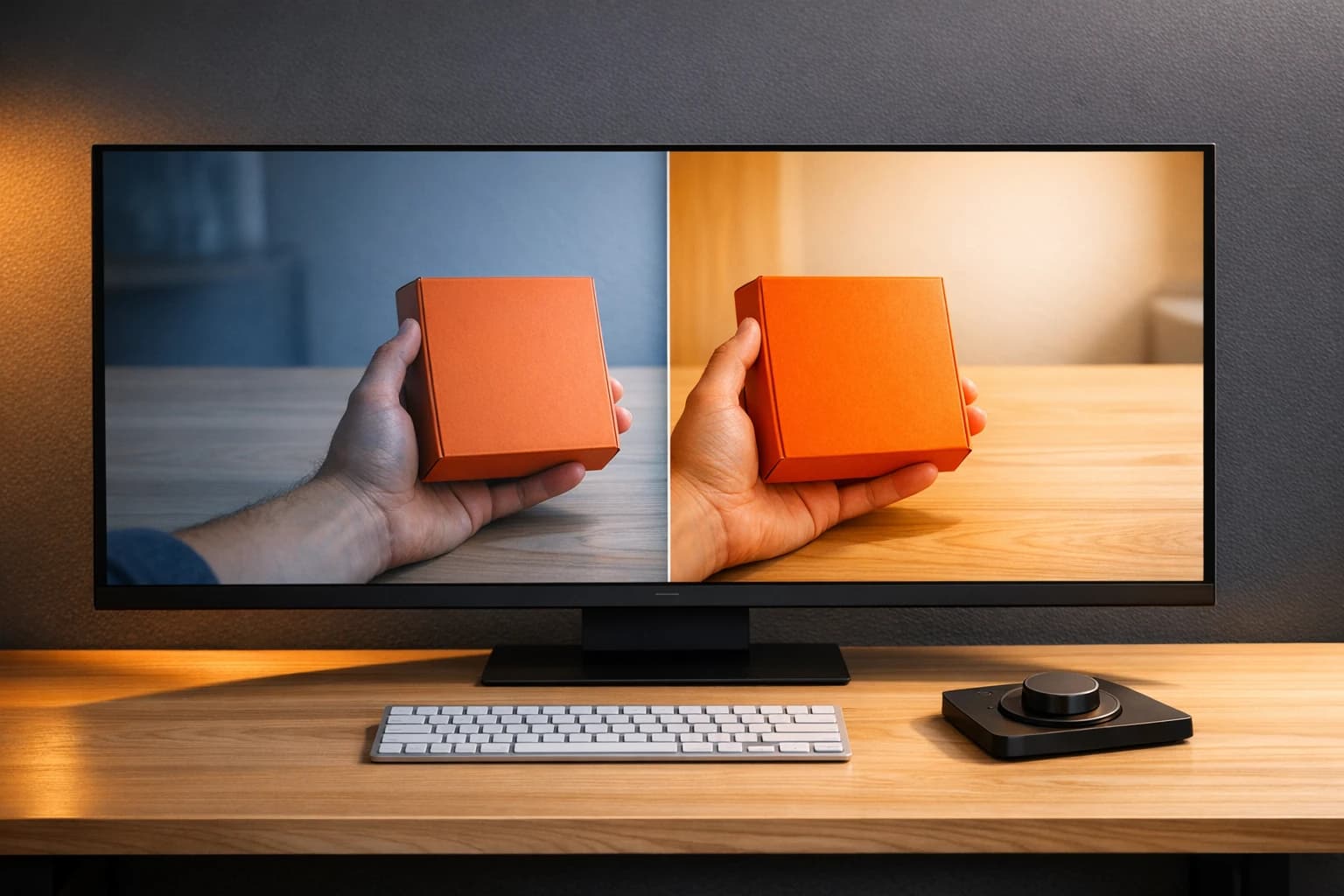
AI color correction simplifies and speeds up video editing by automatically adjusting exposure, white balance, saturation, and more. It ensures consistent, polished visuals for marketing content while saving time. Tools like Adobe Premiere Pro and DaVinci Resolve use AI to match colors across clips, fix lighting issues, and enhance footage quality. This technology is particularly useful for keeping brand colors accurate and maintaining professionalism across platforms like Instagram, TikTok, and YouTube.
Key Highlights:
-
Why It Matters: Consistent colors build trust and increase brand recognition by up to 80%.
-
How It Works: AI analyzes footage, detects elements (e.g., faces, products), and applies adjustments in seconds.
-
Time Savings: Cuts editing time by up to 80% for post-production tasks like color grading.
-
Best Practices: Shoot with stable lighting, use Log profiles, and test final edits on mobile devices.
-
Top Tools: Adobe Premiere Pro ($22.99/month) and standalone tools like ColorLab AI ($299/year) for batch processing.
AI tools handle technical corrections, leaving editors to focus on creative decisions. For large-scale projects, automated pipelines via platforms like APIMart can further streamline workflows, ensuring consistent quality across multiple videos.
AI Color Grading in Premiere Pro is Insane…
Core Concepts Behind AI Color Correction
AI has become a game-changer in streamlining workflows, especially when it comes to color correction. At its core, the process involves a mix of technical precision and creative finesse.
Color Correction vs. Color Grading
These two terms often get mixed up, but they serve distinct purposes.
Color correction focuses on fixing technical issues like uneven lighting, color casts, or dark footage. It’s all about creating a neutral, natural foundation. On the other hand, color grading is where creativity comes into play - adding mood, style, and personality. Think of it as the difference between making a clip look "right" versus making it look "cinematic."
"The difference, almost always, between a video that looks expensive and one that looks corporate is color grading." - All in Motion [9]
The key takeaway? Always correct before you grade. Skipping correction means any flaws, like poor exposure or color casts, will only get amplified during grading [8][10].
Key Variables AI Tools Adjust
AI tools excel at analyzing footage and tweaking several technical aspects automatically:
-
White balance: Removes unnatural color casts, like the warm tones from tungsten lighting, to achieve a neutral look.
-
Exposure: Balances light levels, recovering details in shadows or highlights.
-
Contrast: Sharpens the difference between light and dark areas, crucial for mobile viewing in bright conditions.
-
Saturation: Enhances colors without making them look artificial.
-
Tone curves: Makes localized adjustments, such as brightening a subject’s face without affecting the background.
Advanced tools like Runway GenColor and ColorLab AI 3.0 take it further by using subject detection. This enables them to handle different elements - like skin tones or product surfaces - separately, applying custom algorithms for each [1][4][5].
Here’s a handy tip: when preparing videos for TikTok or Instagram Reels, slightly lift the shadows. Details that look fine on a desktop monitor can vanish on mobile screens, especially in bright environments [3].
Mastering these adjustments is key to tailoring your color approach for different types of videos.
Color Priorities for Different Marketing Videos
Different marketing videos have different goals, and their color treatment should reflect that. Here’s a breakdown:
| Video Type | Primary Color Priority | AI Adjustment Focus |
|---|---|---|
| **Product Demos** | Realism & SKU Accuracy | Ensure accurate white balance and match product colors [[1]](https://pixelfox.ai/blog/ai-color-correction-a-complete-guide-for-marketers) |
| **User-Generated Content** | Consistency | Align diverse phone/webcam footage to a unified look [[7]](https://vvideo.co/blog/top-9-ai-color-grading-tips-brands-are-using-right-now)[[3]](https://klap.app/blog/ai-color-grading) |
| **Brand Films** | Emotional Impact | Use split grading - cool shadows with warm highlights [[9]](https://www.allinmotion.com/blog/color-grading-cinematic-brand-videos) |
| **Social Media/Reels** | Clarity & Pop | Boost contrast and lift shadows for mobile-friendly visuals [[3]](https://klap.app/blog/ai-color-grading) |
| **B2B/Enterprise** | Trust & Precision | Favor cool tones and desaturated silvers for a polished feel [[9]](https://www.allinmotion.com/blog/color-grading-cinematic-brand-videos) |
For e-commerce and product demos, color accuracy is non-negotiable. Buyers expect whites to be crisp and product colors to match reality [1]. In contrast, user-generated content (UGC) campaigns often involve footage from various sources, like smartphones or webcams. AI’s ability to batch-match colors ensures everything feels cohesive [7][3].
"AI color matching is the great unifier. It allows us to build a visual narrative from dozens of disparate sources and have it feel like a single, intentional piece of art." - Creative Director, Global Brand Agency [7]
How to Prepare Footage for AI Color Correction
Pre-Production Tips for Better Results
Achieving quality AI color correction starts long before post-production. The key is stable, consistently lit footage. Even minor exposure shifts can throw off AI tools, leading to normalization issues or visible artifacts. Mixed lighting - like combining daylight with warm practical lights - should be avoided as it often results in unnatural skin tones [4]. Another crucial step is setting a fixed white balance before shooting. This creates a consistent baseline, allowing the AI to perform more effectively [2].
Shooting in a Log profile, such as S-Log, V-Log, or C-Log, is highly recommended. These profiles preserve the most dynamic range, giving AI tools more information to recover highlights and shadows. However, remember: AI can't fix what wasn't captured. If your footage has crushed blacks or clipped highlights, those details are gone for good [2][6].
By following these steps, you’re setting the stage for a smoother post-production process.
Organizing and Preparing Your Clips
Once your footage is captured, organization is the next critical step. Group your clips by recording session, camera type, and lighting setup. This helps prevent inconsistencies when working with footage from different sources. Choose a well-exposed "hero clip" to act as a reference for AI matching. This ensures all clips align with the same visual standard.
Before applying AI tools, convert your Log footage to a standard color space like Rec. 709 or SDR. This initial color space transform standardizes the data, making it easier for AI to deliver consistent results [2].
Proper organization and preparation ensure the AI auto-color process works effectively, producing a unified look across your project.
How to Use AI Auto-Color Features Effectively
With well-prepared clips, AI auto-color features can significantly speed up your workflow. These tools, like Adobe Premiere Pro's AutoTone, are designed to process similar footage in bulk, helping to maintain a cohesive aesthetic across your project [4]. Start by applying technical corrections - adjusting exposure, white balance, and contrast - before moving on to creative grading or applying LUTs.
After the AI has done its job, take time to manually review the footage. Pay special attention to skin tones, as mixed lighting can sometimes cause oversaturation [4]. For elements like brand-specific colors - logos or product Pantones - use manual qualifiers to ensure accuracy rather than relying entirely on AI tools.
If your content is destined for platforms like Instagram Reels or TikTok, test the corrected footage on an actual mobile device. This ensures the color grading looks good on smaller screens [3].
"AI is good at getting clips into the same neighborhood. Human review still decides whether the look actually fits the content." - Klap.app [3]
AI Color Correction Workflows with Popular Tools and APIs
AI Color Correction: Tools, Workflows & Time Savings for Marketing Videos
Color Correction Workflow in Adobe Premiere Pro
Adobe Premiere Pro streamlines both technical adjustments and creative color grading within a single workflow. To get started, arrange your timeline, open the Lumetri Color panel, and use the Auto Color feature (powered by Adobe Firefly AI) to balance exposure, white balance, and contrast. Then, switch to the Color Wheels & Match section, activate Comparison View, and use the AI shot-matching tool to sample a reference clip. The software will automatically apply the reference clip's color and contrast profile to your selected shot [13].
You can fine-tune the results using the Lumetri sliders. For more specific adjustments, the HSL Secondary panel allows you to isolate certain hues, ensuring critical elements like skin tones or product colors remain accurate [13]. Adobe Premiere Pro costs $22.99/month, with Firefly Color AI features included as part of the subscription [5].
"Automate your brand look with LUTs, but always tweak for each video - AI backgrounds can vary subtly in tone." - Senior Colorist, Global Ad Agency [14]
For teams requiring advanced capabilities, standalone AI tools can complement or extend Premiere's functionality.
AI Tools for Custom Color Adjustments
Standalone AI tools offer powerful options for teams needing more control than what is available in traditional editing software. These tools can handle tasks like reference matching, LUT generation, and style transfer, making them essential for maintaining brand consistency across content shot under different conditions or with various cameras.
ColorLab AI 3.0 ($299–$599/year) uses a "hero" clip as a reference to match colors across entire batches of footage [5]. Meanwhile, Runway GenColor ($15–$49/month) provides browser-based, cloud-powered batch processing. Both tools feature prompt-to-LUT generation, where you describe the desired look in plain language - for example, "warm golden hour with lifted shadows" - and the AI creates a .cube LUT file that can be used across editing platforms [12].
For high-volume projects, automated pipelines can make the entire process faster and more efficient.
Building Automated Color Correction Pipelines with APIMart

When marketing teams face the challenge of handling large volumes of video content - such as product catalogs, social media ads, or multi-platform campaigns - manual color correction can quickly become a bottleneck. Automated, API-driven workflows offer a scalable solution.
APIMart (https://apimart.ai) provides access to over 500 AI models through one unified API. These models support every phase of a color correction workflow, enabling teams to streamline their processes. A typical automated pipeline might look like this:
| Workflow Stage | AI API Function | Marketing Benefit |
|---|---|---|
| **Ingest** | Scene Detection | Groups clips automatically for batch processing [[5]](https://aidailyshot.com/blog/ai-driven-color-correction-best-tools-workflows-2026) |
| **Primary Correction** | Neutralization | Fixes exposure and white balance across devices [[1]](https://pixelfox.ai/blog/ai-color-correction-a-complete-guide-for-marketers) |
| **Creative Grading** | Style Transfer | Ensures consistent branding across platforms [[1]](https://pixelfox.ai/blog/ai-color-correction-a-complete-guide-for-marketers) |
| **Quality Control** | Semantic Masking | Protects skin tones and product colors [[5]](https://aidailyshot.com/blog/ai-driven-color-correction-best-tools-workflows-2026) |
| **Export** | Batch Processing | Cuts post-production time significantly [[1]](https://pixelfox.ai/blog/ai-color-correction-a-complete-guide-for-marketers) |
Semantic masking is particularly useful for targeting specific subjects - such as faces, skies, or product surfaces - allowing for precise adjustments. This ensures that skin tones remain natural even when applying bold, stylized looks [1][5].
According to Prodia, AI-driven color grading can cut post-production time by up to 80%, automating repetitive tasks like hue balancing and contrast adjustments [3]. For teams managing content across Instagram, YouTube, and paid social media simultaneously, this kind of efficiency can provide a major operational advantage.
How to Evaluate and Refine AI-Corrected Videos
Quality Checklist for Marketing Videos
Before exporting your AI-corrected video, take a moment to thoroughly review the footage. Using a Waveform monitor, ensure highlights stay below 105 IRE and shadows above 0 IRE. Check the color balance with an RGB Parade, and verify skin tone accuracy with a Vectorscope [15]. These tools help catch subtle issues that might not be obvious on a standard monitor.
Once the technical checks are done, perform these visual inspections:
-
Neutral whites: Are whites free of any green or magenta tint? [1]
-
Natural skin tones: Do faces look natural, not overly smooth or "plastic"? [2]
-
Product color accuracy: Does the product color match the physical item or approved brand swatch? [1]
-
Gradient quality: Are there any areas showing color banding, particularly in shadows? [15]
"Color is persuasion. Whether you're selling products or running campaigns, inaccurate colors can tank trust and depress click-through rates." - Iqra Fatima, Pixelfox.ai [1]
For shots featuring logos, product packaging, or brand-specific colors, use manual tools like qualifiers or masks to lock in those hues. This prevents unwanted shifts during global adjustments [4]. Once these details are verified, adjust the AI's intensity to ensure the edits look natural.
How to Fine-Tune AI Color Results
After addressing technical issues, focus on making the AI corrections visually authentic. Consider AI adjustments as a starting point rather than the final result [4]. Avoid applying the AI's full strength - if skin tones look overly processed, which often happens under mixed lighting, reduce the "Amount" or "Opacity" slider to around 50% to 70% for a more natural appearance [11].
From there, use tools like HSL Secondary or qualifiers to fine-tune specific elements, such as skin tones or product colors, without affecting the rest of the footage. Be on the lookout for common AI artifacts like oversaturation, flicker, or halos [5][15]. These issues often arise when the AI's reference image has a different lighting setup than your original footage - for instance, applying a golden-hour look to footage shot in flat office lighting [3]. Correcting these artifacts ensures your video aligns with your brand's visual standards.
Versioning and Quality Control
When exporting, create at least two versions: one optimized for platforms like YouTube (full dynamic range) and another with brighter midtones for mobile platforms such as TikTok, Instagram, or Reels [7]. For high-end placements, consider producing a third HDR master - by 2026, dual SDR/HDR delivery is expected to become standard in professional workflows [9].
As part of quality control, review each version on multiple calibrated screens to ensure consistency across devices [15][3]. Test the video on a calibrated desktop monitor (set to Rec.709) and a smartphone in a well-lit environment at normal brightness. Make sure captions are easy to read and faces are clearly visible on smaller screens. Social media performance often favors clarity over moody, low-light aesthetics [3].
"If viewers notice color inconsistency before they notice your point, the edit still needs work." - Theo, Content Strategist [3]
Conclusion: Using AI Color Correction to Improve Marketing Videos
AI color correction has become a game-changer for marketing teams. Research shows that color plays a critical role in boosting brand recognition [6], while AI-powered tools can dramatically cut down post-production time, especially for complex multi-camera projects [4]. For enterprise teams juggling thousands of social ads or UGC assets, this efficiency can completely transform workflows.
The real strength of AI lies in what it handles automatically: tasks like exposure balancing, white balance adjustments, and shot matching across clips. By automating these technical aspects, editors can dedicate their time to the creative choices that forge a deeper emotional connection with viewers - something no algorithm can fully replicate.
"AI doesn't replace the creative vision; it codifies it. It allows a brand to have a color signature as distinctive as its logo, applied with a consistency that was previously impossible to maintain at scale." - Industry Colorist [7]
To harness these benefits, APIMart (apimart.ai) provides a streamlined API for automated color correction. This tool processes footage, applies corrections, and delivers distribution-ready assets without the need for manual intervention. Whether you're creating platform-specific edits for TikTok, LinkedIn, or YouTube, or ensuring a cohesive visual identity across a large-scale campaign, this system guarantees consistent quality and quick turnarounds.
Let AI handle the technical groundwork, while human editors focus on creative decisions. Save settings as LUTs or presets to ensure scalable and repeatable quality. This approach - blending speed, precision, and consistency - sets polished, professional brands apart from the rest.
FAQs
When should I use AI color correction vs. manual grading?
AI color correction is a game-changer when you need to balance exposure, match footage from multiple cameras, or maintain consistent visuals that align with a brand. It’s especially useful for projects where time is tight, like social media content, corporate videos, or real estate showcases. The speed and efficiency it offers make it perfect for these fast-paced environments.
On the other hand, manual grading shines in projects that require a more nuanced touch. If you're working on a film with complex storytelling, need to achieve highly specific brand colors, or are dealing with tricky lighting conditions (like mixed lighting setups), manual grading offers the precision and control you need. For high-end brand films, a smart approach is to let AI handle the technical groundwork first. Then, you can step in with manual adjustments to add that final creative flair.
How do I keep skin tones and brand colors from shifting with AI?
To maintain consistent skin tones and brand colors, begin by leveraging AI tools to adjust exposure, white balance, and contrast - this creates a neutral starting point. Protect brand-specific colors or logos by using manual qualifiers or local masks, as AI might unintentionally alter these during auto-matching. Always take the time to manually review sequences, especially if the footage involves mixed lighting conditions. Use a hero clip as your reference point, and apply adjustments with a light touch to prevent oversaturation.
What’s the simplest way to batch-correct lots of clips with an API?
Using a centralized API platform like APIMart is the simplest way to batch-correct multiple marketing clips. It handles tasks such as adjusting exposure, white balance, and contrast across all your clips automatically. All you need to do is send your footage to the API. It then applies corrections based on either a reference frame or a natural language prompt, ensuring your branding stays consistent - without the hassle of manual tweaks.
Choose the model you want in the model marketplace
Try chat, image and video models in the APIMart model marketplace, and experience model capabilities quickly with one unified API.