
How Developers Use AI APIs to Improve UX
See how developers use AI APIs to fix real user friction: smarter search, faster support, better recommendations, voice and image input, and clear guardrails.
AI APIs help fix user friction fast: they improve search, cut support load, speed up replies, simplify data entry, and make apps easier to use with voice and image input.
If I had to sum up this guide in a few lines, it would be this:
- I start with the user problem, not the model
- I use the smallest API that can do the job
- I add streaming, caching, fallbacks, and privacy controls
- I track task success, latency, cost, and error rates
- I test small before I roll anything out
A few numbers from the article stand out:
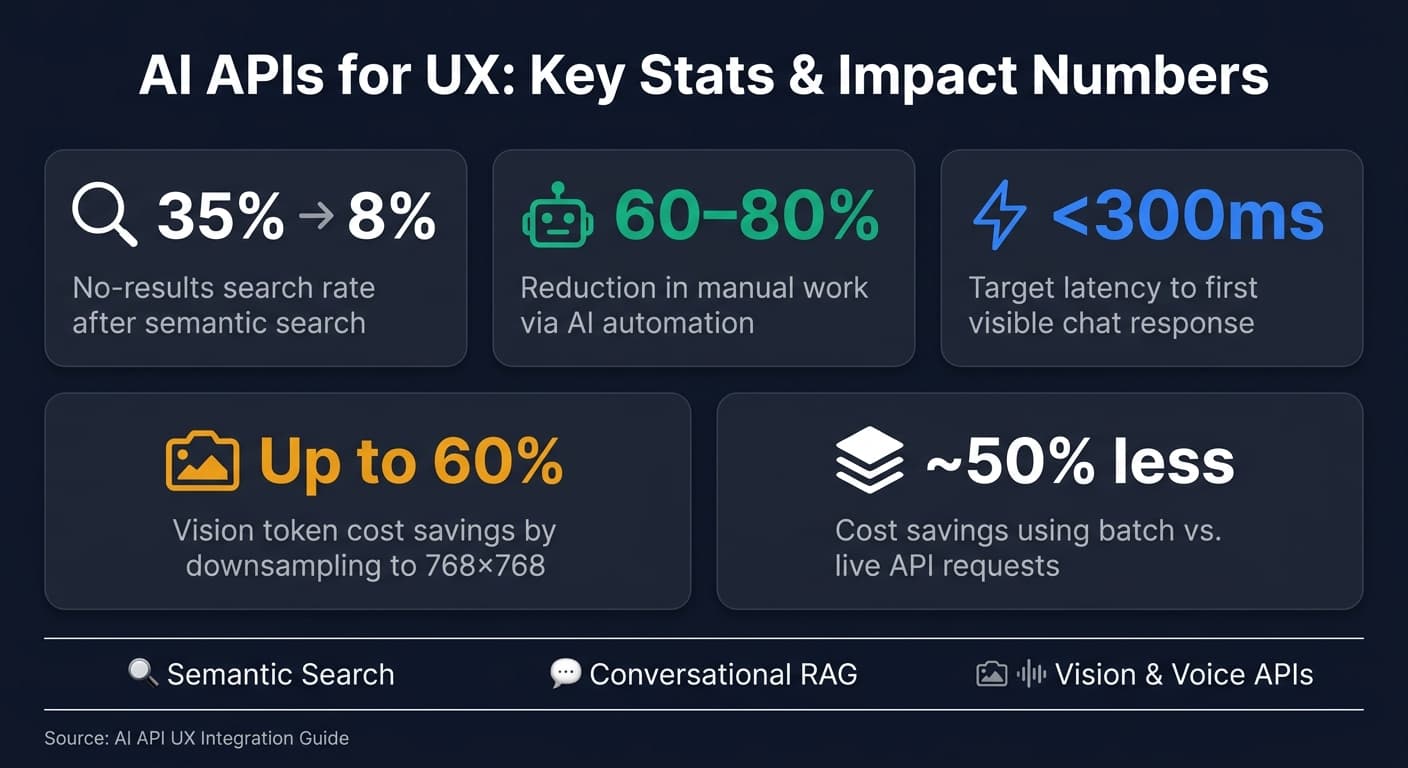
- AI automation can cut manual work by 60% to 80%
- Semantic search can reduce “no results found” rates from 35% to 8%
- For chat, a good target is under 300 ms to first visible response
- Image downsampling to 768 × 768 can cut vision token cost by up to 60%
- Batch workloads can cost about 50% less than live requests
Here’s the plain-English version of how I’d think about it:
- If users can’t find things, I use semantic or hybrid search
- If support teams answer the same questions all day, I use chat with retrieval
- If product feeds feel generic, I use similarity-based recommendations
- If teams spend too much time writing summaries or drafts, I use text generation
- If users type what they could just say or snap, I use speech or vision APIs
The article’s main point is simple: AI works best when it removes a specific point of friction. That means better search, faster support, more relevant suggestions, easier input, and clear guardrails around cost, privacy, and uptime.
Match Common UX Problems to the Right AI API
Search, support, recommendations, and media use cases
Start with the friction point. Then pick the smallest API that can fix it.
That sounds simple, but it saves a lot of wasted time. Many UX problems fall into a few clear buckets: search, support, recommendations, content generation, and accessibility. Once you know which bucket you're dealing with, the API choice gets much easier.
Semantic and hybrid search are some of the clearest wins for large catalogs or knowledge bases. Hybrid search mixes keyword retrieval with vector search, and teams often add a dedicated reranker after that to improve precision [9]. In plain English: instead of only matching exact words, the system also looks at meaning. That can make a huge difference. Replacing old-school keyword search with AI-driven semantic search can cut “no results found” rates from 35% to 8% [10].
Support and onboarding are another strong fit. Conversational AI and RAG work well for self-service flows and repetitive questions, and streaming responses matter because they cut perceived latency from seconds to milliseconds [6][4]. That shift changes how the product feels. Users stop feeling like they’re waiting on a machine and start feeling like they’re in a live exchange. On the business side, AI automation can reduce manual work by 60% to 80% [2].
For e-commerce and media feeds, embeddings-based similarity is a good match for “find items like this” experiences and personalized feeds shaped by user history [2]. If search helps users ask for what they want, similarity helps them discover things they didn’t know to ask for.
Writing tasks are a different lane. Drafting marketing copy, summarizing long documents, and generating email replies tend to work well with lightweight LLMs such as GPT-4o-mini or Claude Haiku 4.5 [6][4]. You don’t need the biggest model for every job. In many cases, a smaller one is the better call.
UX problem types and best-fit API categories
Before you write a single line of integration code, do a quick rule-based check: can a simple SQL query, regex, or if statement solve the problem first [6]?
If yes, skip the API call. You’ll save money and cut latency.
If not, use this table as a quick guide:
| UX Problem | API Category | Best-Fit Capability | Example APIs |
|---|---|---|---|
| Zero-result search | Embeddings / Vector | Semantic & Hybrid Search | text-embedding-3-small |
| Long support queues | Chat / Assistant | Conversational RAG / Self-service | GPT-4o-mini |
| Generic product feeds | Embeddings | Similarity-based Recommendations | text-embedding-3-small |
| Slow content production | Text Generation | Summarization & Drafting | GPT-4o-mini |
| Inaccessible images/UI | Vision | Screen Understanding & OCR | GPT-5.5 |
| Manual data entry | Classification | Structured Data Extraction | GPT-4o-mini |
| Audio and video accessibility barriers | Multi-modal / Speech | Transcription & Real-time Voice | Whisper |
A simple rule of thumb helps here:
- Use small models for routing and classification
- Use mid-tier models for chat
- Use large models only for complex reasoning
Once the API category is clear, the next step is wiring it into the user flow.
Build AI-Powered UX Flows in Web and Mobile Apps
Smarter search and conversational assistance
After you match a UX problem to the right API category, the next job is to fit it into the product flow.
For search, start with retrieval. Pull results with embeddings, rerank the top matches with a low-cost reranking step, and show the best answer first. That same retrieval-first setup works well for support questions too. Instead of asking the model to guess, fetch the right context first and then stream the answer back to the user.
For assistants, speed changes how the whole experience feels. Stream tokens as they arrive so the reply starts right away instead of making people wait for a full response. Use Server-Sent Events (SSE) to push tokens as they arrive [4][1]. It feels a lot more natural, almost like watching someone type.
The prompt matters too. Give the assistant a clear system prompt that sets its behavior, keeps replies short, and tells it not to make things up [1][3]. Use U.S. English and USD throughout. And if a user uploads a screenshot of an error, multimodal input lets the assistant look at the image and answer based on what it actually sees.
Once the response loop feels fast, you can shape it with user context, voice, and screen inputs.
Personalization, voice, vision, and accessibility
Personalization gets better when the app passes profile data into the prompt. That can tune tone, recommendations, and suggested next steps [8]. A learning platform, for example, might pass {"level": "intermediate", "focus": "backend"} into the prompt and then show courses that line up better with the user's goals.
For voice features, speech-to-speech models are a good fit when latency matters. They combine STT, LLM, and TTS in one step, which helps the interaction stay responsive [5]. Before launch, test with real audio samples. Quiet demo audio is one thing; background noise, cheap earbuds, and spotty mobile conditions are another.
Vision APIs help users skip manual entry. A person can snap a photo of a receipt, product label, or form, and the app can pull out structured data. Vision models can also review screenshots or UI flows for support use cases. To keep spend under control, downsample images to 768×768 before sending them to the API. That can cut token costs by up to 60% [5].
Multimodal and video features with APIMart

Video generation can power onboarding clips, product walkthroughs, and short in-app tutorials without manual recording. APIMart gives developers access to 500+ AI models - including text, image, and video generation - through a single OpenAI-compatible API. That makes it easier to combine models in one workflow without rewriting integration logic.
The table below maps the available video models to specific UX use cases:
| Model | Price | Best Use Case |
|---|---|---|
| Kling V3 Omni | $0.0672/sec (720P) | Product showcases, image-to-video, localized content |
| MiniMax Hailuo 2.3 | $0.025/sec | Rapid prototyping, high-volume short clips |
| Vidu Q3 Pro | $0.12/sec | Complex product walkthroughs, educational content |
Start with the lowest-cost model that meets your clip length and quality needs. Then move up only when the UX gain is worth the extra cost.
After the flow works, add privacy, fallback, and cost controls.
Integrate AI APIs Safely, Reliably, and Within Budget
Once the UX flow works, the next job is to make it fast, dependable, and cost-aware. That means putting guardrails around how your app talks to AI services, how it handles user data, and what happens when something breaks.
These checks help keep features quick, trustworthy, and available.
API integration steps and engineering checks
Send AI requests through a backend proxy instead of calling the model provider straight from the client. That keeps API keys private, lets you enforce per-user rate limits, and gives you a place to validate inputs before anything goes out. Store keys in a secrets manager, not in env files. [13][15]
Set hard timeouts so requests don't hang forever. Add exponential backoff with jitter for retries, and open a circuit breaker after repeated failures so one shaky service doesn't drag down the whole app. [7][11][15]
You should also route work by task type. Classification, extraction, and short summaries usually don't need your most expensive model. Low-complexity jobs can go to smaller, lower-cost models, which cuts both latency and spend. [11]
Privacy, trust, and fallback design
Reliability is only half the job. Privacy controls need to run at the same time.
Before any data leaves your server, pass it through a PII redaction pipeline. Detect and replace names, emails, and SSNs with tokens, then restore the original values on the way back. It's a simple idea, but it goes a long way toward protecting user trust. For sensitive workflows, use enterprise zero-retention (ZDR) modes from providers like OpenAI and Anthropic so data isn't stored or used for training. If your app falls under HIPAA or PCI scope, you'll also need a Business Associate Agreement (BAA) with the provider and dedicated enterprise endpoints. [13][14][11][15]
And here's the part teams sometimes skip: always build a non-AI fallback path. If the API slows down or goes offline, the app should still work through standard search, cached results, or a human handoff.
Live API calls vs. pre-generated content
Not every feature needs a live model call. In many cases, calling the model in real time is overkill.
Use live calls for interactive features. Use pre-generated content for repeatable output.
| Feature | Live API Calls | Pre-generated Content |
|---|---|---|
| Latency | Streaming starts quickly, but full completions can still take seconds | Instant or near-instant |
| Freshness | Real-time / dynamic | Static until re-generated |
| Cost | Per-request | Batch-processed or cached |
| Scalability | Limited by provider rate limits | High (served from DB/cache) |
| Reliability | Dependent on API uptime | High (no external dependency at runtime) |
| Best For | Chat, personalized suggestions | Summaries, SEO content, reports |
If a feature can handle delay - like nightly product description updates, bulk support content, or daily reports - use a Batch API. OpenAI and Anthropic both offer about a 50% cost discount for asynchronous batch workloads. [13][11][15]
For chat or real-time recommendations, live calls with streaming make sense. But don't hit the API first out of habit. Check cache before making an external call. Query Redis or a vector database for a matching answer, then fall back to the provider only when needed.
That one habit can save a lot of time and money. Batch jobs and cache hits cut wait time and help keep responses steady. Typical cache hit rates land around 65% to 80% for customer support queries and 40% to 55% for document Q&A. [15]
Measure Results and Use an AI UX Rollout Checklist
Track UX metrics and run small experiments
Once the feature is live, check whether it helps users do the job it was built for.
Start with the signals closest to what users do: thumbs up/down ratings, task completion rate, and follow-up question frequency [6][12]. If follow-up questions are high, the first answer often didn’t do the job. Pick the metric that fits the feature. That might be search success, ticket deflection, recommendation clicks, or task completion.
On the support side, track resolution time, first-contact resolution, and ticket volume. Targeted AI chat can cut ticket volume and improve conversions.
For technical health, watch latency at p50, p95, and p99, plus error rates and cost per request. For interactive flows, aim for under 300 ms to first visible response [16]. If the system feels slow, people drop off. It’s that simple.
A/B tests help you see what changed and whether it mattered. Run the AI flow against the current flow, then compare session completion rate and time on task. Before you change a prompt or swap models, run your golden dataset of 50–100 real-world examples as a regression check. That helps catch quality drops early [11][12].
Developer checklist and conclusion
Use the checklist below to catch issues before rollout and after major model changes.
| Category | Checklist Item |
|---|---|
| Need | Confirm AI is needed |
| Model fit | Match model size to task complexity |
| Data protection | Protect keys and redact PII |
| Fallbacks | Add retries, circuit breaking, and a fallback path |
| Speed | Set a clear speed target |
| Logging | Log input/output tokens, latency, and estimated cost per request |
| UX | Show loading states, stop/cancel controls, and "AI-generated" labels |
| Success metrics | Define success metrics; plan an A/B test or phased rollout |
| Ongoing review | Refresh eval data after major prompt or model changes |
Define the problem, choose the smallest useful API, ship with guardrails, and measure the result.
FAQs
How do I choose the right AI API for my UX problem?
Start with the user interaction, not the provider.
First, pin down what the product needs to do from the user’s point of view. Define the input and output. Is the user speaking, typing, uploading an image, or doing some mix of all three? Then spell out the response format. Do you need a short text reply, a spoken answer, a structured JSON object, or a visual result?
Next, get clear on timing. Some use cases need near-instant replies. Others can wait a few seconds. That one detail can rule out a lot of model options fast.
Privacy and compliance matter just as much. If the product handles medical, legal, financial, or internal company data, you need to know where data goes, how long it’s stored, and what rules apply. Think about consent, logging, redaction, and whether the provider can meet your security needs.
You also need a plan for failure. What happens if the AI gives a weak answer, takes too long, or goes offline? That’s not a side issue. It’s part of the product. A chatbot might fall back to search results. A voice agent might route the user to a human. A document tool might flag low-confidence output instead of guessing.
From there, map the job to the right model category:
- Speech for voice input, transcription, or spoken replies
- Vision for image understanding, OCR, screenshot analysis, or video tasks
- Text generation for chat, summaries, drafting, extraction, classification, or structured output
Some products need more than one category. For example, a support assistant may use speech-to-text, then text generation, then text-to-speech. Simple on paper. Messy in practice.
After that, compare the technical limits that will shape the experience. Latency affects whether the product feels smooth or sluggish. Context window size affects how much history, source material, or instruction you can pass in one request. Budget sets the ceiling on what’s possible at scale. A model that looks good in a demo can become too expensive once you hit production traffic.
Pick a provider based on those product needs, not brand recognition. The best choice is the one whose tradeoffs fit your app. More important, choose one whose failure modes your product can live with. If the model is sometimes slow, can the interface absorb that? If it occasionally misses details, is there a review step? If it goes down, do you have a backup path?
That’s the part teams often skip. They compare model quality, but not how the product behaves when things go sideways.
When should I use live AI calls instead of cached or batch output?
Use live AI calls for tasks that need back-and-forth, right-now responses, like chat interfaces, voice agents, or any feature where users expect instant feedback. If you can stream the response as it’s being generated, even better. It cuts perceived wait time and helps people stay engaged instead of staring at a blank screen.
For work that doesn’t need an immediate reply, batch output is usually the better fit. That includes jobs like document processing, content generation pipelines, and bulk data extraction. You can also add exact or semantic caching for repeat requests to speed things up and cut costs.
How can I add AI features without hurting privacy or reliability?
Protect privacy by sending AI API calls through a secure backend proxy, not the frontend. That keeps API keys out of the browser, gives you a place to clean up inputs, and lets you mask personal data before anything reaches the model. If you're dealing with sensitive health data, the setup also needs to meet the required rules, including a Business Associate Agreement.
For reliability, put a gateway in front of the model layer. That gives you a control point for retries, circuit breakers, and fallback providers when one service slows down or fails. It’s the difference between a system that breaks under stress and one that keeps moving.
Response quality matters just as much. Ground answers in verified internal data with RAG so the model pulls from sources you trust instead of guessing. Then require source citations when the system makes a claim, or have it say so plainly when it isn’t sure. That kind of honesty goes a long way.
Before launch, test the setup with golden prompts. They give you a steady way to check output quality, watch for drift, and catch bad behavior before users do.