How to Use SkyReels V4 Fast for Quick Videos
Learn how to use SkyReels V4 Fast on APIMart, configure modes, choose resolution, manage inputs, reduce costs, and build repeatable video workflows.
SkyReels V4 makes video creation faster and easier by generating synchronized video and audio in one step. It’s twice as fast as earlier versions, saves up to 70% in costs, and is perfect for quick previews, batch projects, and daily content creation. Starting at $0.064 per second for 480p, it’s an affordable option for professionals. Key features include:
- Multimodal Inputs: Combine text, images, video clips, and audio references in a single request for precise control.
- Built-In Audio-Visual Sync: Automatically syncs dialogue, sounds, and music without post-production.
- Optimized Rendering: Produces 15-second, high-quality clips at 1080p and 32 FPS.
Set up SkyReels V4 on APIMart by creating an account, generating an API key, and configuring settings like resolution and duration for your needs. Use the fast mode for drafts and standard mode for polished outputs. With flexible workflows like text-to-video, image-to-video, and video extension, SkyReels V4 simplifies video production for creators.
SkyReels-V4: Multi-modal Video-Audio Generation, Inpainting and Editing model (Feb 2026)
Key Features of SkyReels V4 for Speed and Efficiency
SkyReels V4 focuses on three main areas to simplify video production: multimodal inputs, built-in audio-visual synchronization, and an optimized rendering engine for creating short, high-quality clips.
Multimodal Inputs for Precise Control
SkyReels V4 goes beyond basic text prompts by allowing users to combine text, images, video clips, and audio references in a single request. Thanks to its unified MLLM encoder, all inputs are processed through one semantic layer, ensuring the system understands every asset in context before generating frames [3].
One standout feature is the @tag mechanism, which lets you directly reference uploaded assets in your prompt. For example, you can write something like, "@Actor-1 walks into the scene of @video1", turning your prompt into a detailed script. The system supports up to 3 reference images and 1 reference video (10–15 seconds max) per request, along with prompts of up to 1,280 tokens [1]. This flexibility makes it easier to produce synchronized and cohesive audio-visual outputs.
Built-In Audio-Visual Synchronization
SkyReels V4 excels at combining diverse inputs into a seamless product. Its dual-stream Multimodal Diffusion Transformer (MMDiT) generates video and perfectly timed audio in one go [3]. This approach handles everything - dialogue, lip-sync, ambient sounds, and music - without needing post-production tweaks.
"When SkyReels generates video and audio together, the timing feels baked in, not glued on later." - Dora, Content Creator, WaveSpeed Blog [7]
To fully utilize this feature, include audio-specific details in your prompt, such as voice tone, background sounds, or music style. This capability has drastically reduced post-production time for many users. For example, marketing teams have reported cutting editing time by 70%, and a 12-second product clip with synced voiceover and sound effects can be created in just 58 seconds [5].
Short Clips at High Quality
The rendering engine in SkyReels V4 is optimized for producing short, shareable clips quickly. It delivers 15-second videos at 1080p resolution and 32 FPS [3]. This ensures high-quality results without needing additional upscaling.
The engine uses a two-stage rendering process: first, it drafts a low-resolution motion plan, then sharpens the keyframes. This method allows users to quickly identify and discard flawed takes, which is especially useful for projects requiring multiple iterations [7].
| Feature | Specification |
|---|---|
| Max Duration | 15 seconds |
| Max Resolution | 1080p |
| Frame Rate | 32 FPS |
| Reference Images | Up to 3 |
| Reference Video | Up to 1 (max 10–15 sec) |
| Audio Sync | Native (Dual-stream MMDiT) |
These features work together to simplify the video production process, ensuring fast, precise results from concept to final output.
How to Set Up SkyReels V4 on APIMart

Ready to dive into SkyReels V4? Here's how to get it running on APIMart quickly and efficiently.
Accessing SkyReels V4 Through APIMart
First, you'll need a free APIMart account to get started with SkyReels V4 [2]. Once you've signed up and logged in, head to the API Key Management page to generate your API key. Keep in mind that the API key is displayed only once, so make sure to save it securely [1].
APIMart uses a pay-as-you-go model, so you'll need to add funds to your account before making your first request. To interact with SkyReels V4, include your API key in the HTTP request header as a Bearer Token, like this:
Authorization: Bearer YOUR_API_KEY
When specifying the model, use skyreels-v4-fast for speed-focused tasks or skyreels-v4-std for higher-quality outputs [1].
The API operates asynchronously, meaning you won't get the video immediately after submitting a request. Instead, you'll receive a task_id. Use this ID to poll the task status endpoint, which will eventually provide the URL to your finished video [1].
Configuring Settings for Speed
If speed is your top priority, configure your settings as follows: choose skyreels-v4-fast, set the resolution to 480p or 720p, and keep the video duration between 3–5 seconds. This setup keeps costs and generation times low, with skyreels-v4-fast at 480p costing just $0.064 per second [2].
To optimize your workflow further, enable the prompt_optimizer feature (enabled by default). This tool refines your prompts automatically, reducing the need for manual adjustments and re-runs. Additionally, set sound: false when using the fast tier, as audio may be disabled in high-speed mode. Once you've finalized the motion and composition using these settings, switch to skyreels-v4-std at 1080p for your polished output.
| Parameter | Recommended Setting | Notes |
|---|---|---|
| Model | skyreels-v4-fast | Use skyreels-v4-std for final high-quality output |
| Resolution | 480p or 720p | 480p is the quickest and most economical option |
| Duration | 3–5 seconds | Acceptable range is 3–15 seconds |
| Sound | false | Necessary for fast mode in some configurations |
| Prompt Optimizer | true | Reduces manual re-runs by refining prompts |
Organizing Your Input Files
Proper file organization is key to a smooth video generation process. A well-structured folder system saves time and ensures you send the right assets.
"Think of prompt as the 'script' and tag as a 'character pointer' to specific assets." - APIMart Documentation [1]
Here’s how to organize your files:
- Images: Place all reference images (JPG, PNG, or WEBP) in one folder. Each file can be up to 30 MB.
- Videos: Store reference videos (MP4 or MOV) in another folder. These videos can be up to 100 MB and 15 seconds long.
- Audio: Keep audio references in a separate folder for easy access.
To maintain clarity, name your files based on their @tag. For instance, save an actor’s headshot as Actor-1.jpg and reference it in your prompt as @Actor-1. This approach ensures a clear connection between your files and the tags in your prompt.
Lastly, avoid mixing I2V fields with Omni reference fields in a single request to prevent a 422 error [1].
Step-by-Step Workflows for Fast Video Generation
Once you’ve got your API key and files ready, it’s time to start creating. SkyReels V4 offers three main workflows - text-to-video, image-to-video, and video extension. Each one caters to different production needs, so you can pick the method that fits your project best.
Text-to-Video for Quick Drafts
The text-to-video (T2V) workflow kicks off when you submit a prompt with general parameters like duration and resolution. This is perfect for prototyping quickly. To structure your prompt, include details like: scene description, subject or action, camera movement, lighting or aesthetic, and technical specs.
"The model excels at understanding natural language descriptions of camera work - terms like 'dolly in,' 'crane up,' 'tracking shot,' and 'handheld' translate directly into the corresponding cinematic movements." - ModelsLab Editorial Team [9]
For your initial drafts, try using skyreels-v4-fast at 480p resolution. At just $0.064 per second [2], you can experiment with multiple iterations before committing to a polished, high-resolution version.
Image-to-Video for Animated Stills
If you’re starting with a static image, this workflow brings it to life by adding motion.
The image-to-video (I2V) mode animates a still image into a short video. For even higher consistency, you might also consider MiniMax Hailuo 2.3 for professional-grade results. It’s a great option for projects like product photography, social media posts, or any scenario where you already have a strong visual but need to add movement.
To use I2V mode, include a first_frame_image URL along with your prompt. The model ensures the first frame of the video matches your source image exactly [10], so elements like brand colors, character details, or product features stay consistent. Focus your prompt on describing motion and camera behavior, since the static details are locked in by the image. For example: "@product-shot, slow orbit around the bottle, soft studio lighting, natural motion."
You can also include an end_frame_image or up to six mid_frame_images with @tags to guide the animation’s progression [1]. If you don’t specify timestamps, SkyReels V4 will automatically space the frames evenly [8]. For best results, use source images with a minimum resolution of 1,280×720 to avoid compression issues when rendering at 720p [10].
Video Extension for Longer Clips
Need to extend an existing video? The video extension workflow lets you add new footage to a clip while keeping the visuals seamless.
This feature uses Omni mode, which you can activate by submitting a reference video and setting the type parameter to extend. Use a @tag in your prompt to specify how the clip should continue. For instance: "Video extended @clip1, the character turns and walks toward the window."
Keep in mind, the API will only return the newly added footage. You’ll need to combine the original clip and the extension during post-production. To stay flexible, plan longer sequences as modular 15-second segments. Use fast mode for drafts and save skyreels-v4-std for final, approved segments. This approach keeps your production process efficient while ensuring the final product feels cohesive.
Balancing Speed, Quality, and Cost on APIMart
Get the most out of SkyReels V4 by finding the right balance between speed, quality, and cost. APIMart's pricing model allows you to control expenses by adjusting clip duration and resolution.
Choosing Duration and Resolution for Efficiency
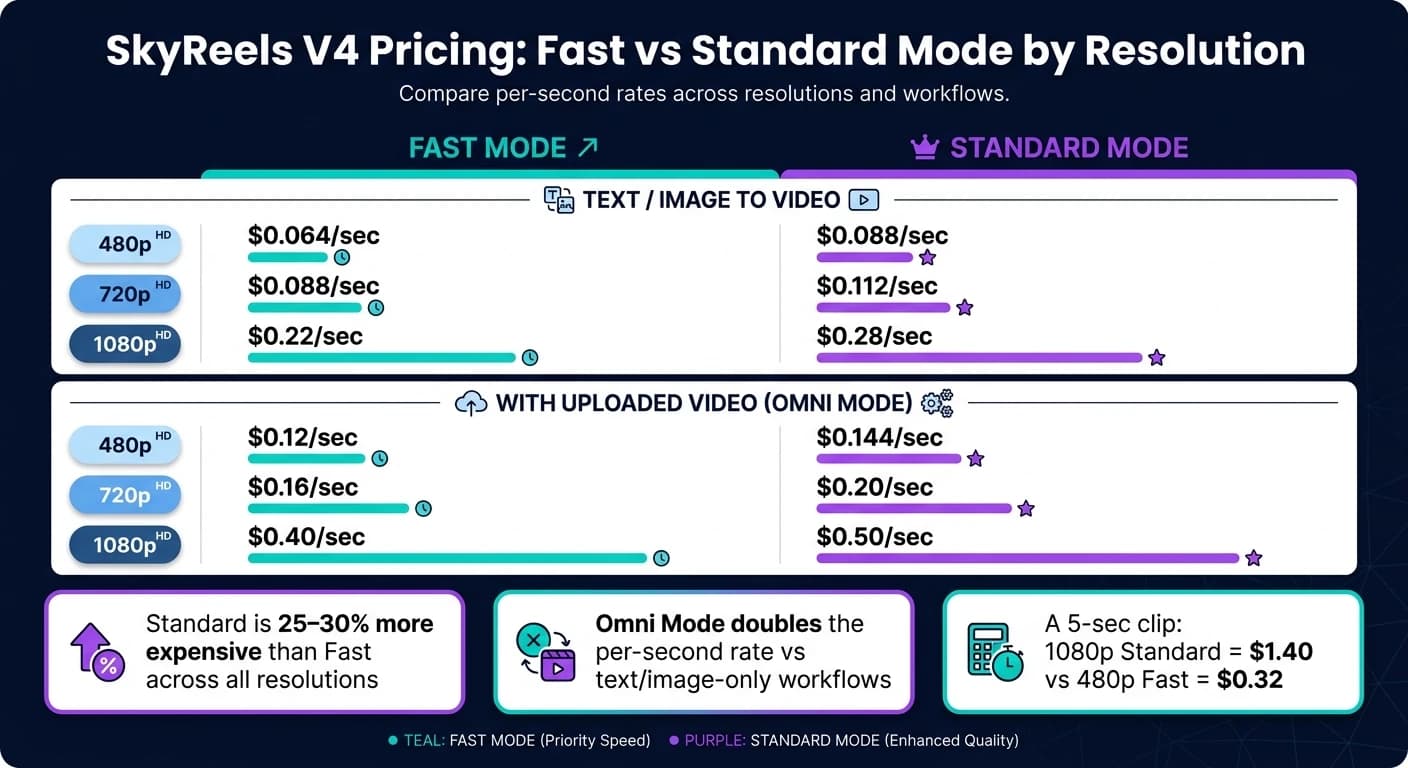
When it comes to costs, resolution and duration are the biggest factors. For example, creating a 5-second clip at 1080p in Standard mode costs $1.40, while rendering the same clip at 480p costs just $0.32 - a fraction of the price [4]. To save money during the initial stages of a project, start with shorter clips (around 3 seconds) at 480p to validate your composition. Once you're satisfied, increase the resolution to 720p or 1080p for the final output [4][6].
Understanding APIMart's Per-Second Pricing
APIMart charges based on the length and resolution of your clip, so costs rise as either increases. Here's a breakdown of the pricing tiers for common workflows:
| Workflow Mode | Resolution | Fast (per sec) | Standard (per sec) |
|---|---|---|---|
| Text / Image to Video | 480p | $0.064 | $0.088 |
| Text / Image to Video | 720p | $0.088 | $0.112 |
| Text / Image to Video | 1080p | $0.22 | $0.28 |
| With Uploaded Video | 480p | $0.12 | $0.144 |
| With Uploaded Video | 720p | $0.16 | $0.20 |
| With Uploaded Video | 1080p | $0.40 | $0.50 |
Source: APIMart Pricing [2]
The skyreels-v4-std tier is typically 25–30% more expensive than the fast tier across all resolutions [1]. For drafts, social media content, or batch testing, using the fast tier at 480p or 720p is a smart choice, similar to how you might test WAN 2.6 for high-consistency drafts. Save the std tier at 1080p for polished, client-ready videos. If you're working in Omni mode with reference videos, be aware that it doubles the per-second rate compared to text or image-only workflows [1]. Use Omni only when maintaining subject consistency is a priority. With these insights, you can better manage costs and streamline repeatable workflows.
Using Templates for Repeatable Tasks
For recurring video projects, stick to a consistent prompt structure: [Subject] + [Action/Motion] + [Camera Movement] + [Lighting & Style] + [Audio Details] + [Duration] [5]. Swap out only the variable elements for each new project. Leverage the @tag feature and the prompt_optimizer tool to ensure uniformity and cut down on retries [1].
Conclusion: Faster Video Production with SkyReels V4 and APIMart
SkyReels V4 simplifies the video production process by combining video creation with synchronized audio - covering lip-sync, sound effects, and background music - all in one seamless pipeline. This eliminates the need for separate post-production steps, saving an average of 15–20 minutes per asset [11].
The platform uses a two-tier model to strike a balance between speed and quality. This approach allows for efficient testing and refinement of video content before the final 1080p rendering. Paired with APIMart's competitive pricing - offering rates up to 20% lower than official list prices [2] - this iterative process becomes even more cost-effective.
APIMart further enhances the experience with its 99.9% uptime SLA [2] and straightforward pay-as-you-go billing. This means teams can focus on creating content rather than worrying about infrastructure management.
Indie developer Pieter Levels summed it up perfectly:
"SkyReels V4 didn't wow with spectacle: it lowered the number of times you had to start over. That's its quiet strength." [11]
FAQs
When should I use Fast vs Standard mode?
Fast mode is perfect for quick iterations, testing visuals, or rapid prototyping. It’s designed for speed and is budget-friendly. However, it doesn’t support synchronized audio - sound must be set to false.
For projects requiring top-tier visual quality, go with Standard mode. This option is ideal for professional-grade storytelling, delivering polished and high-quality video rendering.
Why is my SkyReels V4 request returning a 422 error?
A 422 error indicates that your request is incomplete because it's missing a critical reference. To resolve this, make sure to include at least one of these parameters: ref_images or ref_videos. The model relies on one of these inputs to handle your video generation request correctly.
How can I cut costs without losing too much quality?
If you're looking to cut costs while still getting great results on APIMart, here are a few strategies to consider:
- Use the Fast model tier for testing: This is perfect for early drafts and experimentation, helping you save money during the initial stages of your project.
- Preview at lower resolutions: Start with 480p or 720p for previews. Once you're satisfied with the draft, you can finalize it in 1080p for the best quality.
- Turn off sound in Fast mode: By setting
sound=falseduring Fast mode, you can further reduce expenses, especially if sound isn't critical during testing. - Test shorter video durations: Instead of jumping straight to the 15-second limit, try shorter clips first. This approach can help you manage your budget while refining your content.
These small adjustments can add up to significant savings without compromising the final output.