Pixverse V6 Review: AI Video Generator
A hands-on review of Pixverse V6, the AI video generator making 15-second 1080p clips with synced audio. See its features, strengths, limits and pricing.
PixVerse V6, launched on March 30, 2026, is an AI video generator designed to create 15-second, 1080p videos with synchronized audio in a single step, similar to Sora 2. It improves upon its predecessor, V5.6, by addressing issues like inconsistent visuals and separate audio processing, a challenge also addressed by Kling V3, making it a more reliable tool for short-form video creation. At just $0.45 for 540p clips, it offers a cost-efficient alternative to traditional production methods, which can cost $30–$80 for similar results.
Key Features:
- Multi-shot storytelling: Smooth transitions between shots with consistent visuals.
- Resolution options: Supports 360p to 1080p across popular aspect ratios (16:9, 9:16, etc.).
- Audio-video sync: Generates native audio (ambient sounds, music) alongside visuals.
- Customizable controls: Includes cinematic lens settings and multilingual text rendering.
- APIMart integration: Simplifies workflows with a unified API and lower costs.
Strengths:
- Stable visuals and character consistency.
- Fast generation (30–60 seconds for 1080p).
- Flexible for social media ads, product promos, and pre-visualization projects.
Limitations:
- Capped at 15 seconds.
- Struggles with complex scenes or precise sound design.
- Minor visual artifacts in challenging lighting conditions.
If you need short, high-quality videos for ads, e-commerce, or concept testing, PixVerse V6 is worth exploring. Start with low-resolution drafts to refine your prompts before scaling up for final production.
Core Features and Capabilities of PixVerse V6
Multi-Shot Storytelling and Video Quality
PixVerse V6 introduces a native multi-shot engine that creates seamless sequences of connected shots, such as moving from a wide establishing shot to a close-up. This ensures consistency in character appearance, lighting, and environmental details across every cut, delivering a polished storytelling experience. [2][5]
One major improvement over earlier versions is how V6 addresses "temporal drift" - those frustrating mid-clip changes in a character's face or clothing. By allowing users to upload multiple reference images, this model stabilizes character details for up to 15 seconds, ensuring visual continuity. [5]
"V6 is the first AI video model I've tested where the phrase 'production-grade' isn't aspirational - it's descriptive." - PixVerse Blog Reviewer [2]
V6 also comes packed with over 20 cinematic lens controls, including settings for focal length, aperture, depth of field, and chromatic aberration. These features replicate specific camera setups, making it easier to pre-visualize scenes with precision. [5]
On top of these advanced controls, V6 offers flexible resolution and format options to suit various platforms and use cases.
Resolution, Duration, and Format Options
PixVerse V6 supports four resolution levels and eight aspect ratios, making it adaptable for diverse content needs. Here's a quick breakdown of the aspect ratios and their common applications:
| Aspect Ratio | Common Use Case |
|---|---|
| 16:9 | YouTube, standard widescreen |
| 9:16 | TikTok, Instagram Reels |
| 1:1 | Square Instagram posts |
| 21:9 | Cinematic ultra-wide, film pre-viz |
The model can generate clips ranging from 1 to 15 seconds at 1080p resolution. To optimize costs, users can validate their prompts at 360p with a 5-second duration before scaling up. [2][3]
Additionally, V6 offers two motion modes: Normal for smooth cinematic movements and Fast for dynamic, high-energy scenes, perfect for action sequences or social media content. [3]
Native Audio and Text Features
One standout feature of PixVerse V6 is its ability to generate audio and video in a single pass. The model creates ambient sounds, sound effects, and music that align perfectly with the visuals - think ocean waves for a beach scene or seamless audio transitions between shots for a cohesive sound design. [2][3]
"Audio and video are generated simultaneously, and what previously demanded multiple tools and production stages can now be completed in a single generation." - PixVerse [4]
Developers can easily toggle audio on or off with a single API parameter (audio: true), streamlining integration into various workflows. [7]
V6 also excels in multilingual text rendering, supporting English, Chinese, and other languages. The model ensures stable text placement and consistent styling throughout entire clips, solving issues that plagued earlier versions. [4]
How to Use PixVerse V6: A Step-by-Step Workflow
Getting Started with PixVerse V6
To begin using PixVerse V6, you'll need an API key or Bearer Token to authenticate your requests. Once authenticated, set the model parameter to pixverse-v6 in your API request body or playground settings [7][8].
After authentication, configure the model by selecting the resolution, duration, and aspect ratio. Options include resolutions like 360p, 540p, 720p, or 1080p; durations from 1 to 15 seconds; and aspect ratios such as 16:9 for YouTube or 9:16 for TikTok. Based on the input fields you provide (e.g., image_urls or img_references), the model will automatically determine whether to use Text-to-Video, Image-to-Video, or Multi-reference Fusion mode [7][1].
For efficiency, it’s a good idea to start with a 360p resolution and a 5-second clip to test your prompt. This approach keeps costs low while allowing you to validate your input before generating a full-resolution clip. For example, a 360p draft costs approximately $0.08, while a 1080p, 15-second clip with audio costs around $2.16 [1][3]. For higher-end production, you might also consider the Veo 3.1 API for cinematic quality.
Once your settings are ready, the next step is crafting a clear and detailed prompt to guide the video generation process.
How to Write Effective Prompts
Avoid vague or overly creative descriptions like "a magical forest at dawn", as they often lead to inconsistent results. Instead, focus on clear, detailed prompts that include specific elements like subject, action, scene, camera movement, and mood or lighting.
"The single biggest improvement in results comes from changing how you write prompts. Move away from creative writing style... and toward clear, observable details." - Doris, Reviewer at SeaArt AI [6]
Here’s an example of an effective prompt: "Medium shot of a woman in a red jacket walking through a pine forest, slow camera push in, soft morning side light, calm and quiet mood." For audio, describe the sounds you want, such as "birds chirping with light wind", and make sure to set generate_audio_switch to true.
Pair your main prompt with a negative prompt to filter out unwanted artifacts. Use terms like "blurry, shaky camera, distorted, low quality" to improve output quality. PixVerse V6 allows prompts up to 5,000 characters and negative prompts up to 2,048 characters [7][3].
Once your clip is generated, it’s time to review and refine the results.
Reviewing and Refining Video Outputs
When assessing your video, check for elements like temporal stability, character consistency, audio-visual sync, and alignment with your prompt. Use the seed parameter for fine-tuning - this allows you to make adjustments while maintaining visual continuity [2][5][7].
If your clip feels too short but otherwise meets your expectations, use the Extend mode to continue the sequence while preserving its visual flow [7][9]. For issues like inconsistent character appearance, leverage the multi-shot consistency feature by applying the img_references parameter. This ensures that a character’s look remains consistent across multiple shots, even in complex sequences [5].
I Tested PixVerse V6 As A Professional Director - Here's What Changed
PixVerse V6 Performance: Strengths, Limits, and Use Cases
Strengths and Visual Quality
PixVerse V6 stands out for its ability to create consistent visuals throughout its 15-second runtime, ensuring stable characters and environments [2]. It generates native 1080p clips in just 30–60 seconds and offers features like physics-aware movement, realistic lighting, multilingual text, and over 20 camera control options, including dolly, crane, orbit, and tracking [4][9][10]. Integrated audio synthesis further simplifies the production process [10]. As AI expert Jordan Morris puts it:
"For creators who want to post directly to social media without opening Premiere or CapCut, that is a real time saver." [10]
While these strengths make it a powerful tool, its capabilities are best suited for shorter clips and simpler shot arrangements.
Limitations and Constraints
Despite its impressive features, PixVerse V6 has a few limitations. The 15-second duration cap makes it less ideal for projects requiring longer, continuous sequences [9]. Its multi-shot engine performs optimally with 2–3 scenes per generation, but more complex shot lists can lead to inconsistencies [9]. The model correctly interprets complex directional prompts about 70–80% of the time [3]. While the audio quality works well for ambient sound and social media content, it may fall short of professional-grade sound design standards. Additionally, minor visual artifacts, like slight color temperature shifts during extreme lighting transitions, can appear in complex scenes [2][6].
Ideal Use Cases
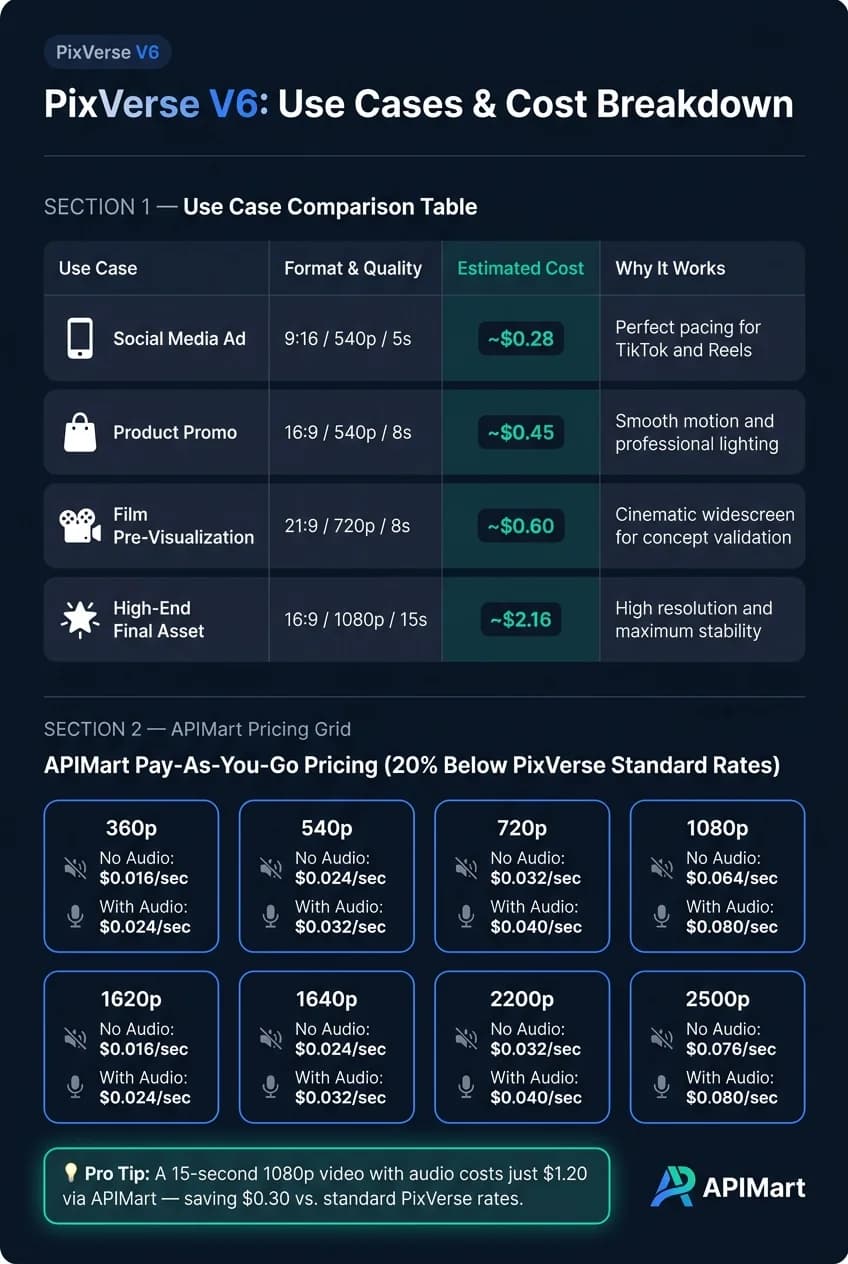
Considering its strengths and limitations, PixVerse V6 is particularly effective for short-form, high-volume, or concept-stage projects. The table below highlights common use cases and their estimated costs:
| Use Case | Format / Quality | Est. Cost | Why It Works |
|---|---|---|---|
| Social media ad | 9:16 / 540p / 5s | ~$0.28 | Perfect pacing for TikTok and Reels |
| Product promo | 16:9 / 540p / 8s | ~$0.45 | Smooth motion and professional lighting |
| Film pre-visualization | 21:9 / 720p / 8s | ~$0.60 | Cinematic widescreen for concept validation |
| High-end final asset | 1080p / 15s | ~$2.16 | High resolution and maximum stability |
Creative Technologist Alex Morgan highlights its value for pre-production:
"PixVerse V6 gives our creative team a fast way to test cinematic campaign scenes before production. The APIMart workflow is easy to automate." [1]
For e-commerce teams, the image-to-video mode is especially useful, allowing brands to transform product photography into dynamic video content without the need for a full production setup. However, it is less suitable for long-form storytelling, projects requiring precise physics simulations, or those demanding broadcast-quality sound design straight out of the box.
Integrating PixVerse V6 with APIMart for Unified AI Workflows
PixVerse V6 in Multi-Modal Pipelines
PixVerse V6 works seamlessly with other AI models to create multi-modal workflows. For instance, large language models like GPT-4o can generate detailed visual prompts, which PixVerse V6 then uses to produce videos. It also supports native audio integration through the audio parameter, embedding synchronized audio directly into the video output.
The API offers five distinct modes, giving developers flexibility based on their input needs:
| Mode | Input Required | Output |
|---|---|---|
| Text-to-video | Text prompt | Generates video based on a description |
| Image-to-video | A single image URL | Animates a static image as the starting frame |
| Transition | First and last frame images | Creates a smooth transition between two frames |
| Multi-ref fusion | 1–7 reference images | Combines multiple images into a single video |
| Video extension | extend_from_task_id | Extends a previous task for longer narratives |
The video extension mode is particularly handy for overcoming the 15-second duration limit. By chaining tasks using extend_from_task_id, teams can create longer video sequences without starting over [7]. This modular approach sets the stage for integrating PixVerse V6 with APIMart, which streamlines workflows.
Using APIMart for AI Integration
APIMart takes the advanced capabilities of PixVerse V6 and connects them to a larger ecosystem of over 500 AI models. It simplifies production and billing with a single, OpenAI-compatible endpoint: POST /v1/videos/generations [1]. To generate a video, submit a POST request with parameters like model, prompt, resolution, and duration. Then, poll the status using GET /v1/tasks/{id} every five seconds until the task is complete [7].
APIMart also handles centralized billing, task tracking, and offers a 99.9% SLA, making it a reliable solution for production workflows.
"PixVerse V6 is practical for prototypes and structured enough for production API experiments, especially when paired with APIMart task tracking." - Priya Nair, Engineering Manager [1]
"The PixVerse V6 API page makes the PixVerse V6 request structure clear for developers. Model, prompt, duration, resolution, and size are straightforward to wire up." - Daniel Park, Product Engineer [1]
Cost Breakdown and Reference Architecture
APIMart not only simplifies functionality but also offers cost efficiency. Its pay-as-you-go pricing is based on resolution and audio inclusion, with rates that are 20% lower than PixVerse's official pricing [1]:
| Resolution | Price (No Audio) | Price (With Audio) |
|---|---|---|
| 360p | $0.016/sec | $0.024/sec |
| 540p | $0.024/sec | $0.032/sec |
| 720p | $0.032/sec | $0.040/sec |
| 1080p | $0.064/sec | $0.080/sec |
For cost optimization, consider prototyping at 360p or 540p to test prompts and scene composition before scaling up to 1080p for final production. For example, a 15-second 1080p video with audio costs $1.20 through APIMart - saving $0.30 compared to PixVerse's standard rates [1].
For teams juggling multiple AI tools, APIMart's unified billing and consistent response format across models reduce integration complexity. As Lucas Huang, Product Marketing Manager, explains:
"APIMart lets us test PixVerse V6 through the same gateway and billing pattern we already use for PixVerse V6 and other AI video models." [1]
Conclusion: Is PixVerse V6 Right for You?
PixVerse V6 is an AI video generator designed to produce consistent 15-second 1080p clips using its multi-shot engine and built-in audio tools. With over 100 million users and a $300 million Series C funding round in March 2026 [4][10], it’s clear that PixVerse has earned a strong foothold in the market. Its focus on short-form social and marketing content makes it a compelling option for creators in these fields. That said, no tool is perfect.
PixVerse V6 has its limitations. Features like physics simulation, facial rendering, and audio dialogue may not match the precision of more specialized tools [10]. If your project demands hyper-realistic faces or intricate physical interactions, you might need to weigh these factors carefully. In such cases, exploring alternatives like Grok Imagine Video may provide the high-quality output required.
"V6 advances shot execution, character performance, and multi-shot audio-visual generation, with improvements across both creative and commercial use cases." - Robyn Tan, Head of Global PR, PixVerse [4]
Even with these limitations, agencies, content studios, and developers can still benefit from the efficiency and scalability offered by V6. The cost - about $1.20 per 15-second 1080p clip - is a budget-friendly option, especially when combined with APIMart's unified billing for over 500 models and its 99.9% uptime, which simplifies large-scale production workflows [1].
"PixVerse V6 gives our creative team a fast way to test cinematic campaign scenes before production. The APIMart workflow is easy to automate." - Alex Morgan, Creative Technologist [1]
If your focus is on short-form social videos, marketing pre-visualization, or narrative prototyping, PixVerse V6 is worth exploring. Start by testing your prompts at 360p to keep costs low, then move up to 1080p when you’re ready for the final product.
FAQs
Can I make videos longer than 15 seconds?
Videos on PixVerse V6 cannot exceed 15 seconds in length. The platform supports a maximum duration of 15 seconds per video. When making API requests, you can specify any whole number between 1 and 15 seconds for the video length.
What inputs work best (text, images, or both)?
PixVerse V6 offers flexible input methods to cater to different creative approaches. You can stick to text-only prompts or incorporate images for more precise control. When using images, you have several options: a single frame, two frames to create transitions, or up to seven reference images for fusion mode. Keep in mind that all image files need to be accessible through HTTP or HTTPS URLs. For those with advanced needs, video tasks can also be extended using a task ID.
How do I reduce costs without losing quality?
To keep expenses low while still getting the results you need, tweak the technical settings of PixVerse V6. Here’s how:
- Lower the resolution: Opt for the lowest resolution that still works for your project. For instance, a 360p video will cost less than a 1080p version.
- Shorten the duration: Keep your video as brief as possible to reduce costs.
- Turn off audio when unnecessary: If your project doesn’t require sound, disabling it can cut costs even further.
By making these adjustments, you can create effective videos without stretching your budget.